Authentication
CertHub APIs are authenticated with an API key. Generate your own key in Settings → API Keys (steps below). A key acts on behalf of the CertHub user who created it: it inherits that user’s product access and permissions, so it can only see and change what that user can in the dashboard.
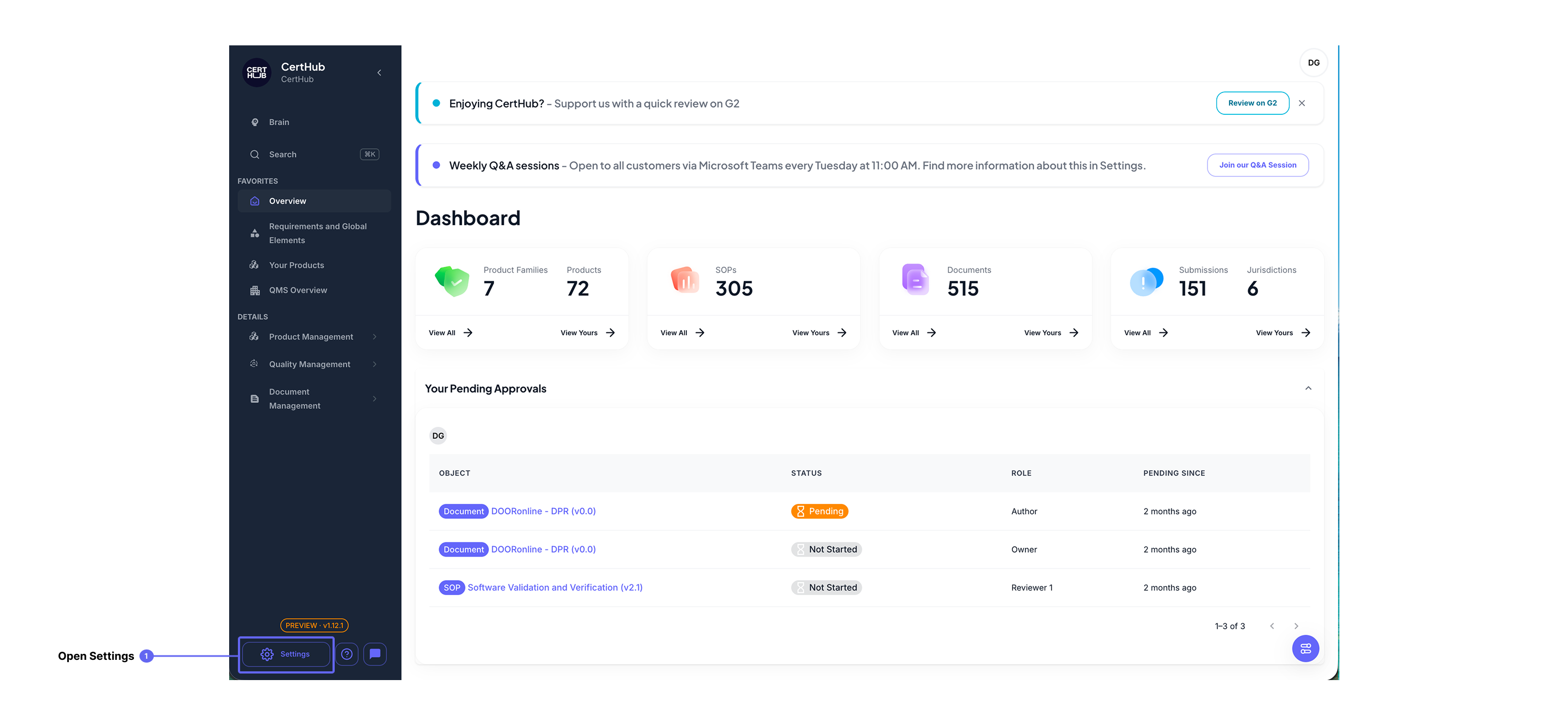
1. Open Settings
From the CertHub dashboard, open Settings in the bottom-left corner.
2. Go to API Keys
In Settings, select API Keys.
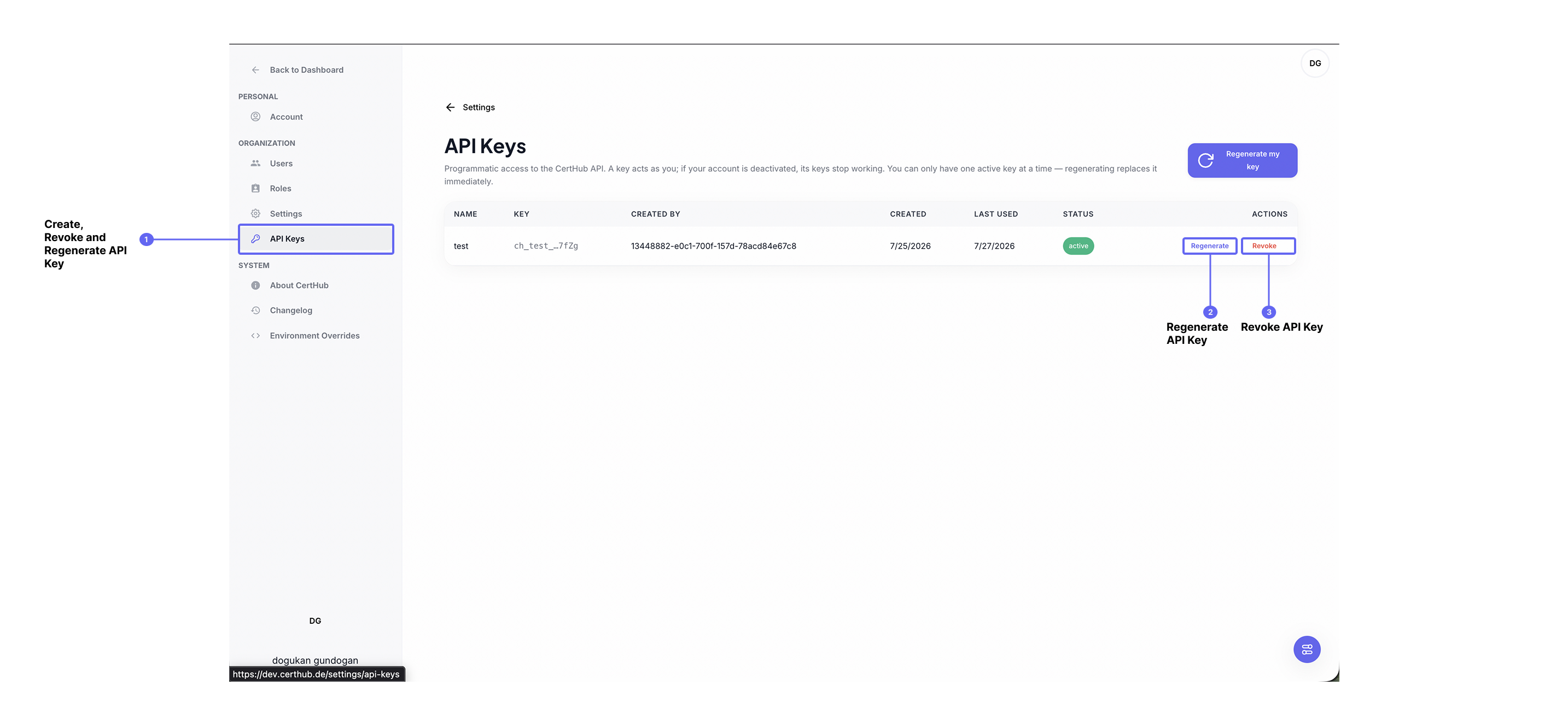
- Click Regenerate my key to create your key. The full key is shown once, so copy it and store it somewhere safe, such as a password manager or secrets vault. CertHub only ever displays a masked version of it afterwards.
- You can only have one active key at a time. Clicking Regenerate replaces it immediately, and anything using the old key will stop working, so update all your integrations at the same time.
- Click Revoke to disable a key immediately without generating a new one.
3. Use the key
Send your key on every request using the X-API-Key header:
curl "https://techdoc.prod.certhub-containers.containers.certhub.tech/products/" \
  -H "X-API-Key: YOUR_API_KEY"
That call lists products your key can access and needs no other IDs. See Make your first request.
caution
Treat your API key like a password. Anyone with the key can act as you. If a key is ever exposed, revoke it right away and generate a new one.