Global Elements
The Global Elements Module provides a centralized, searchable, and editable repository for global information that is used across the entire platform. Examples for such information are:
- Applicable Regulations
- Glossary Terms
- ...and more.
It allows users to define, manage, and maintain standardized, process-independent or product-independent data that can be referenced by all objects.
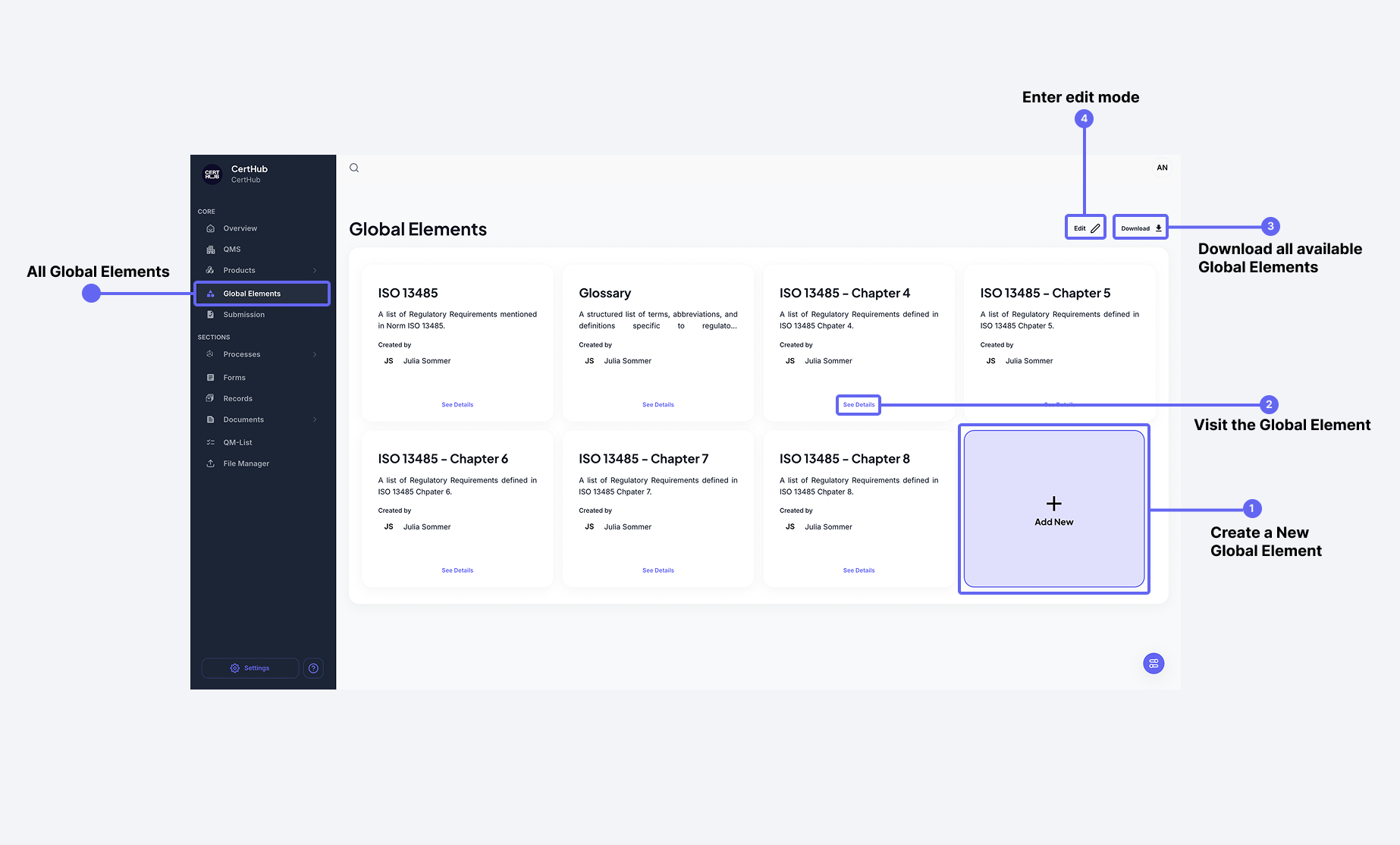 Global Elements Module provides a way to store lists of system wide applicable information, e.g. requirements.
Remember when I said, everything in CertHub is customizeable? Of course, that also includes Global Elements!
You can totally add new ones but also just click into an exisitng one.
Creating a new Global Element
To create a Global Element, follow these simple steps:
- Assign a Unique Name – Choose a distinct name for your Global Element to ensure clarity and avoid duplication.
- Add a Description – Provide a brief, meaningful description to explain the purpose of the element.
- Define the Table Columns – Use the Forms Builder to structure the Global Element according to your needs.
Once created, your Global Element will be ready for use in your system.
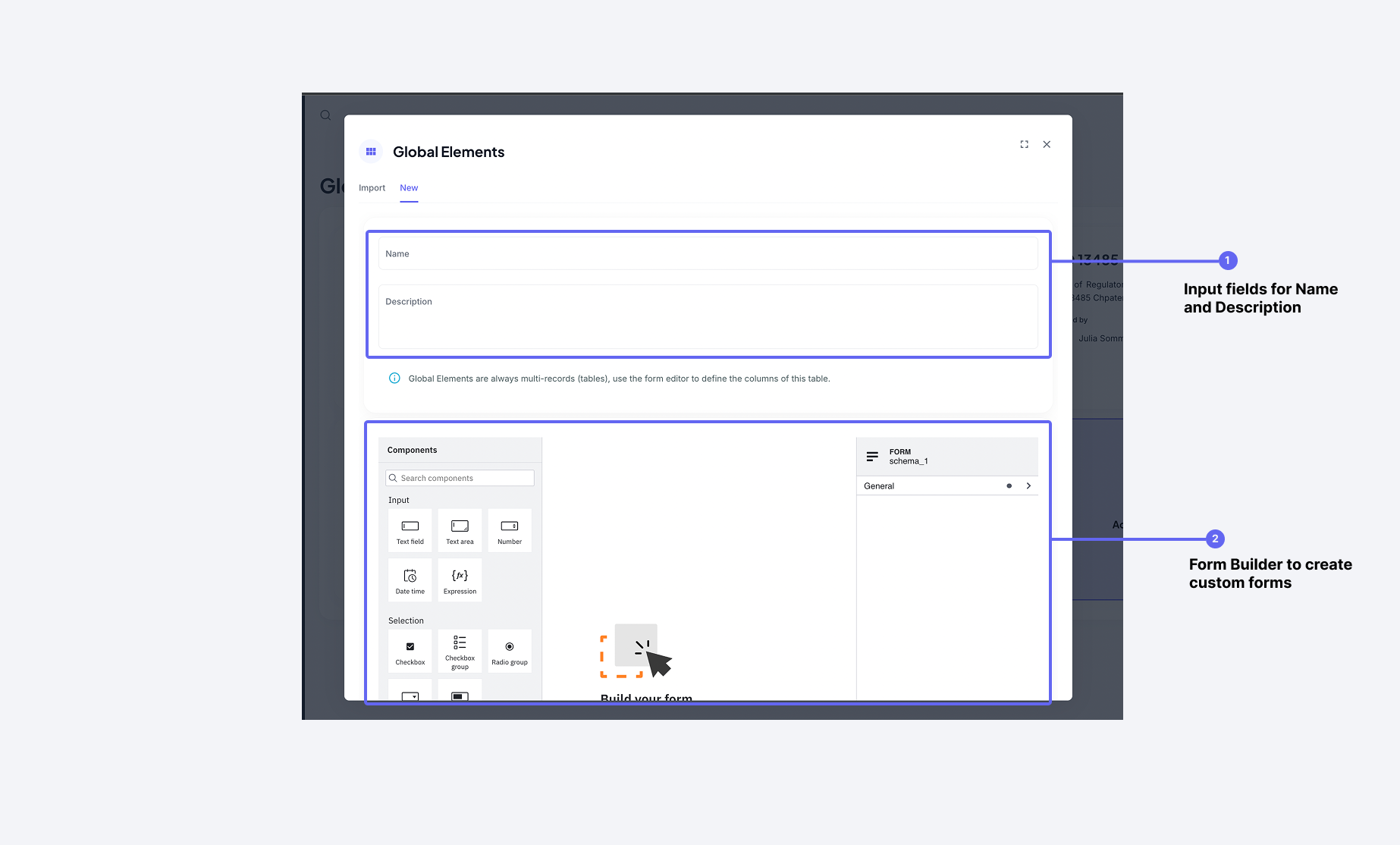 The creation dialog lets you specify basic information along with the structure (=columns of the list) for the Global Element
For detailed information about how the Form Builder works, see the Form Builder Guide.
Viewing a Global Element
Ok enough talk, let's click into a global element!
Have a look how a Global Element actually looks like in the CertHub!
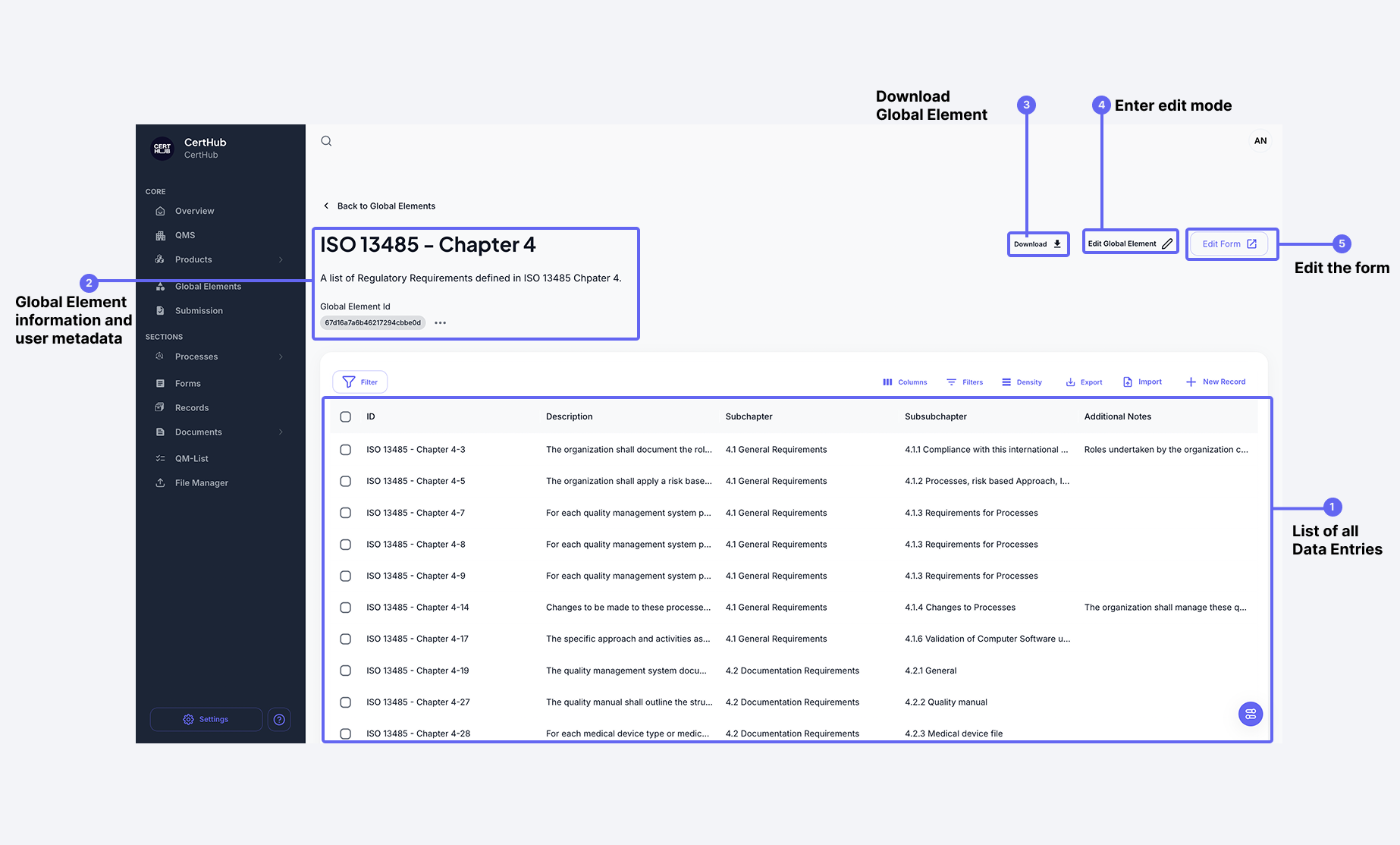 Global Element Details provides additional information about a particular Global Element and related data
Managing Global Elements
Editing a Global Element
Somethings not to your liking? Just change it. Edit the Global Elemennt and change name or description. You can also just change any of the entries. Click on one and edit the information right there. Don't forget to click on save, please!
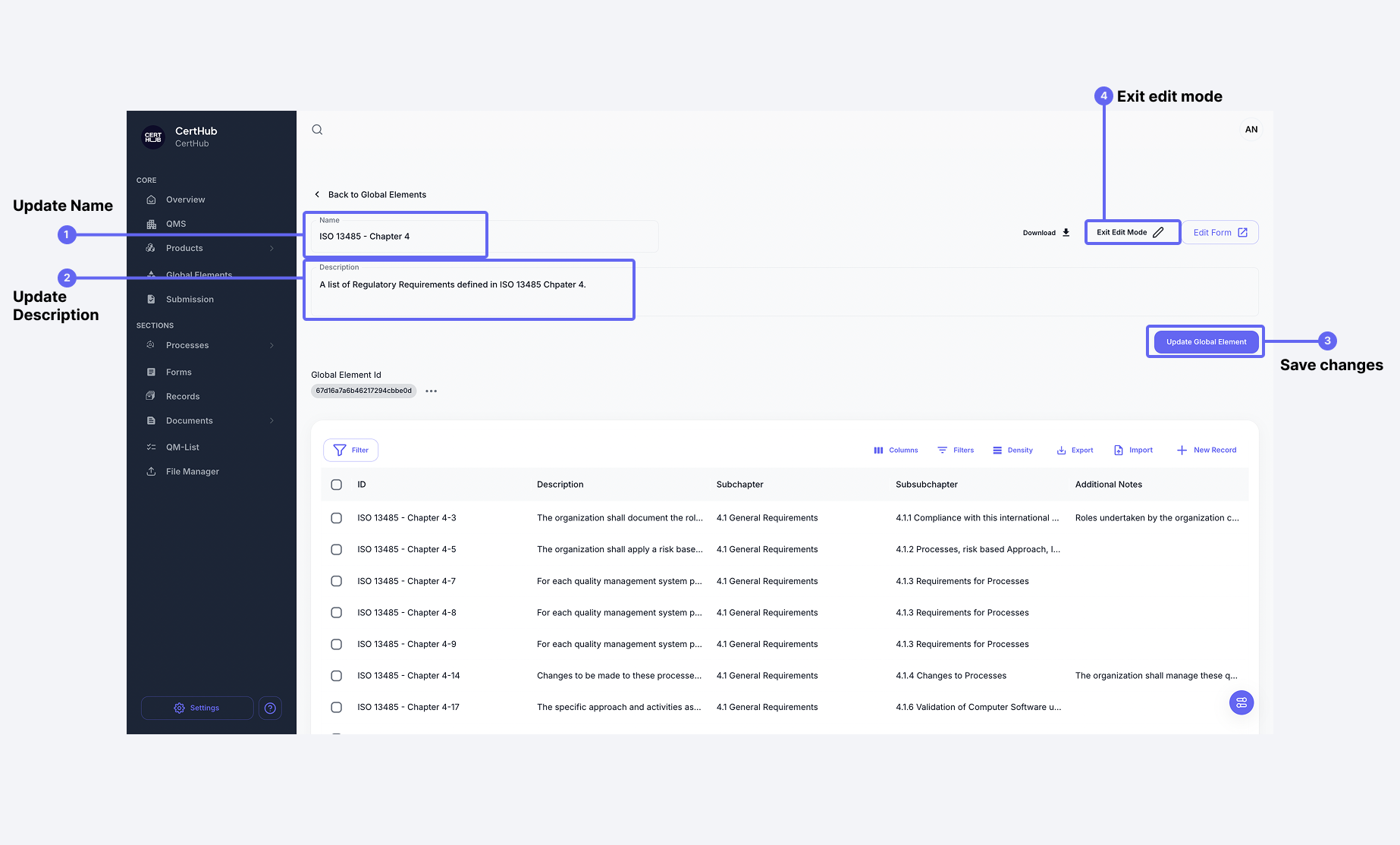
Editing the Structure of the List
Let's find the "Edit Form" button. With this you can change the columns of the list! (When you add a new entry to the list, you will also have to fill out whatever you define here.)
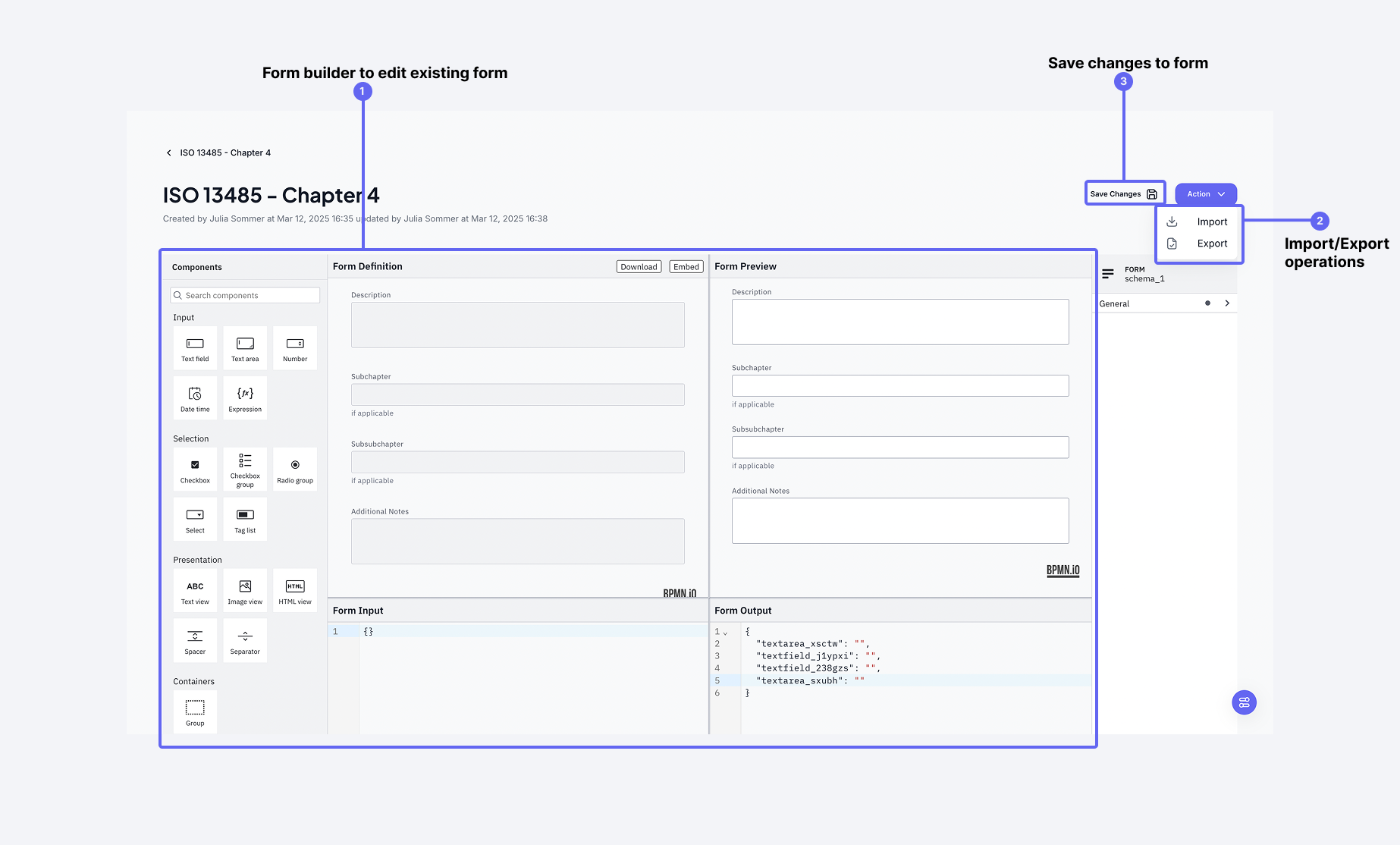
For detailed information about how the editing Form Builder works, see the Form Builder Guide.
Filtering
By the way, you can filter any of the lists in CertHub (It all works the same, you will notice it's a theme)
Setting Traces
Let's click on a specific entry of the List again.
You will find our Tracer functionality there. This is what you would use to connect any object to another object in CertHub. By the way, you will most likely find two different types of the Tracer. (Even though we love all our children the same) The Global Elements are bit more special, since they hold specific requirements, so you have a dedicated Tracer only for the Global Elements!
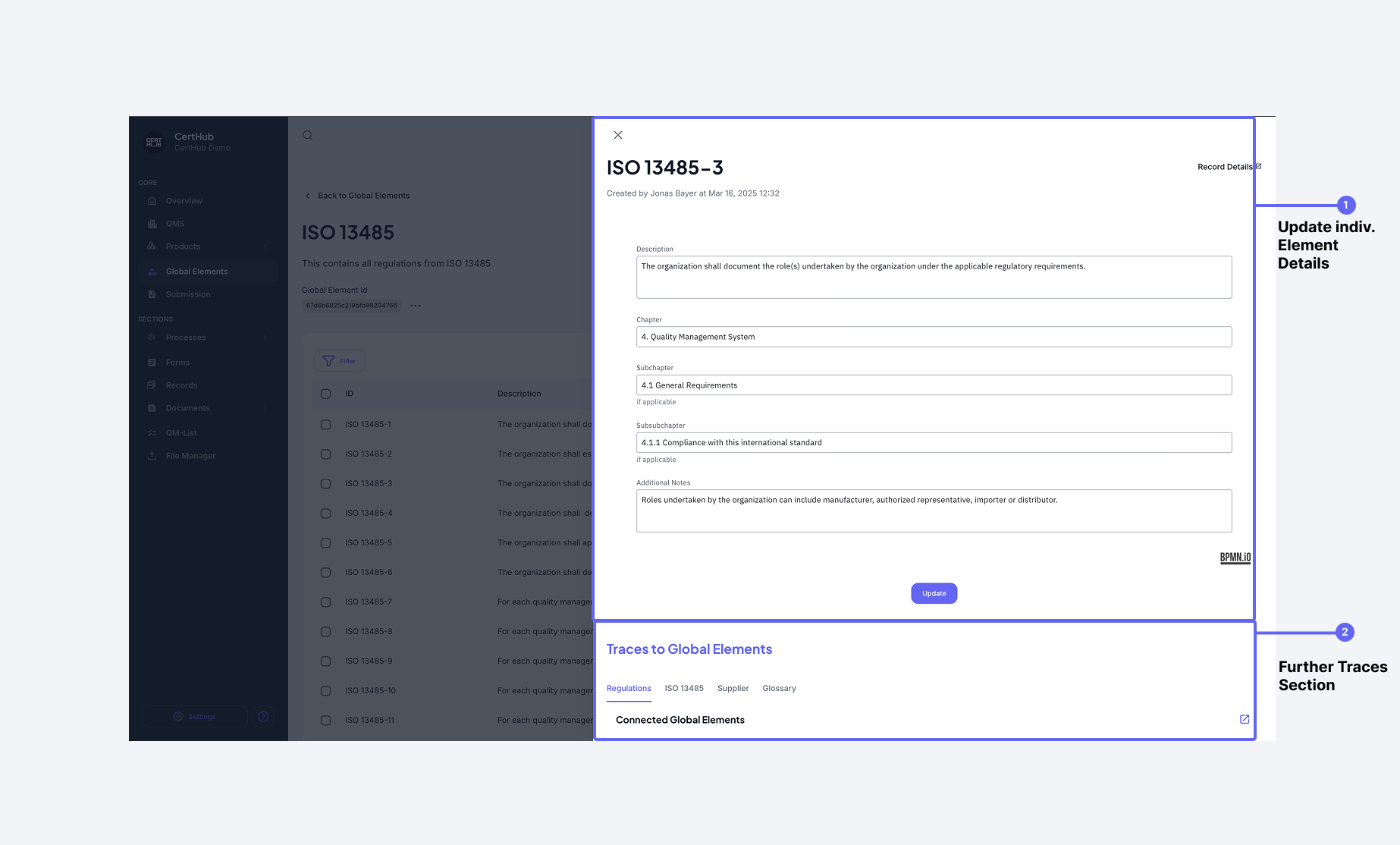 The entry drawer provides access to all details and allows setting traces to other objects
Deleting a Global Element
You can also delete a particular Global Element from the main Global Elements view.
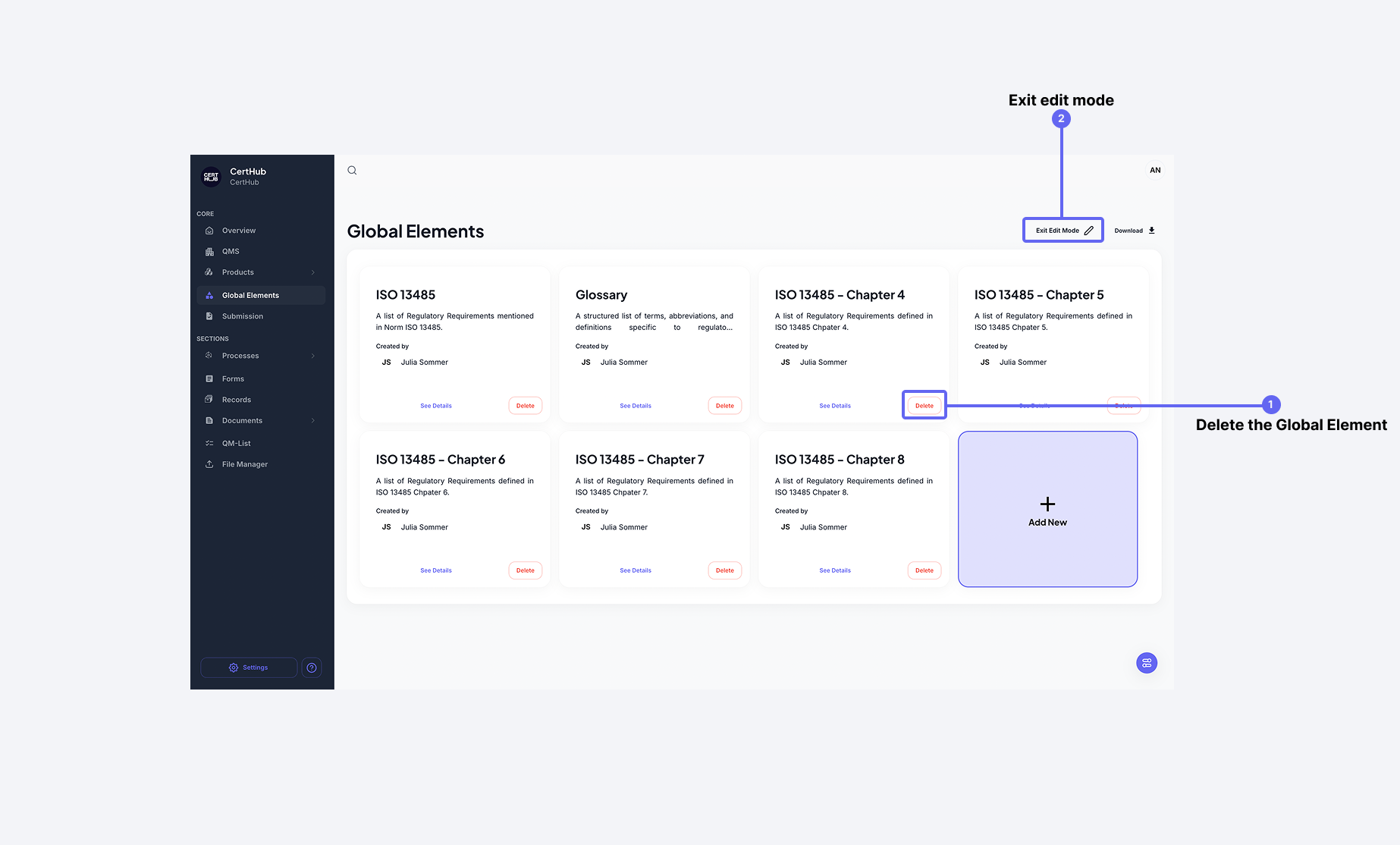
Be cautious, as deletion may affect dependent components or data linked to the element.
Advanced: Importing Global Elements
When creating a Global Element, you can also import data directly using one or multiple JSON documents. This allows you to quickly add new elements with predefined data.
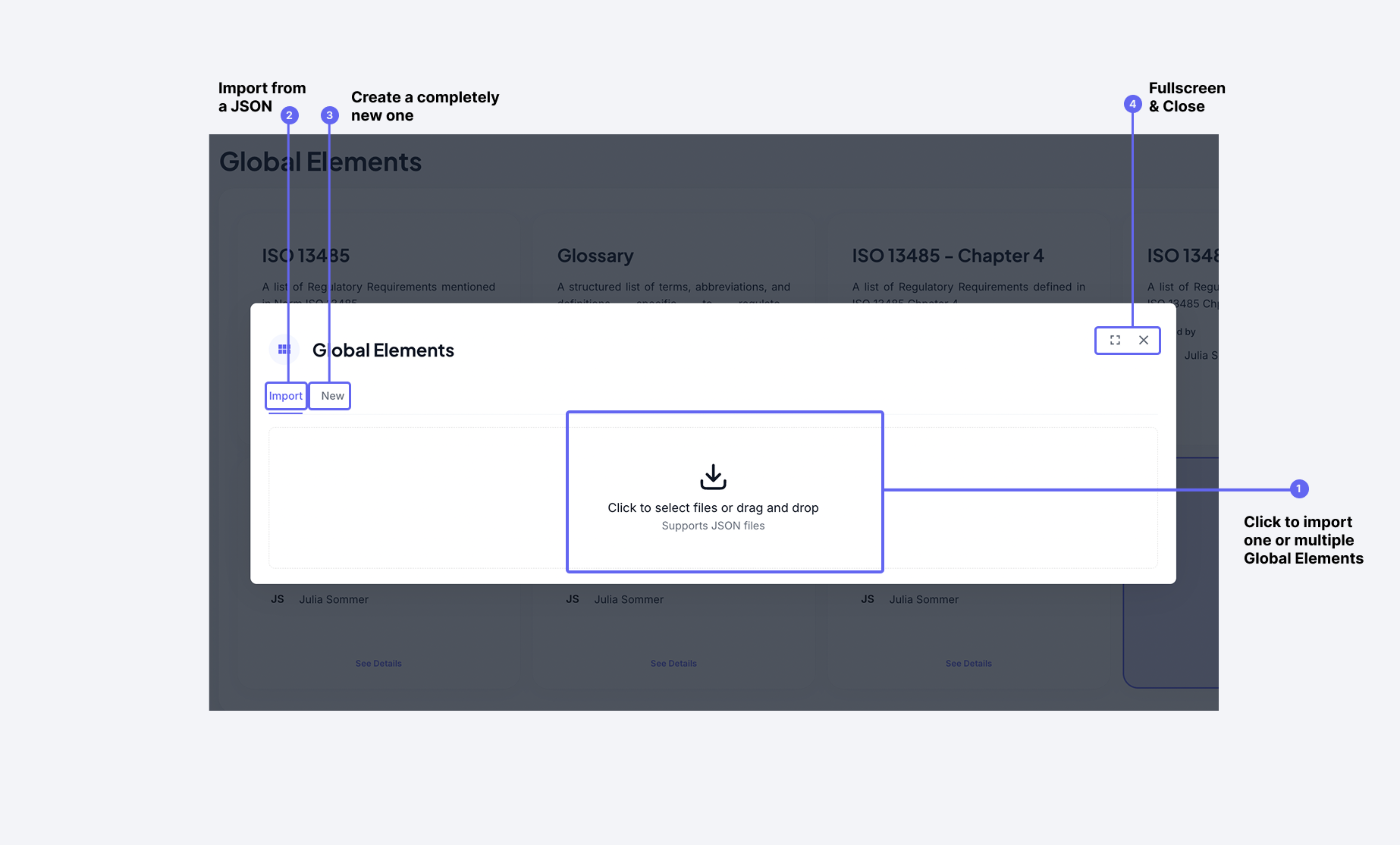 The import dialog allows you to reuse different Global Elements, to save time and efforts
For more information regarding how importing data works, check out our Import Guide