Jira Integration
You can import issues from Jira Cloud into a product's Knowledge Group. CertHub creates a list Knowledge Topic from them, with one record per issue. The Jira issue key (for example DEMO-1) becomes the record ID. You can trace these records like any other list entry.
At a glance:
- Direction: Jira → CertHub only. CertHub does not change anything in Jira.
- When: Only when you click Submit, Sync All, Import from Jira or Refresh. Nothing syncs automatically in the background.
- Where: Knowledge Topics in a product's Knowledge Groups.
- Who connects: Each user connects their own Atlassian account. There is no admin setup and no Jira page in Settings.
Before you start
- You need a Jira Cloud site and an Atlassian account. CertHub only shows the projects and issues that your own Jira account can see.
- In CertHub you need permission to create Knowledge Topics in the product. Without it, the + button for adding a topic is disabled.
- Allow pop-ups for CertHub in your browser. The Jira sign-in opens in a pop-up window.
Connect to Jira
- Open a product and then the Knowledge Group you want to import into.
- In the Knowledge Topics card, click +.
- Select the Import from Jira tab.
- Click Connect to Jira.

- In the pop-up, sign in with your Atlassian account and accept the access request. Atlassian lists what CertHub asks for: reading your Jira user and issues, creating and editing issues, and offline access.
- The pop-up closes and your Jira projects appear.
CertHub keeps your Jira access only in the open browser page and does not save it. When you reload the page, open CertHub in another tab or sign in again, click Connect to Jira again.
If your Atlassian account has given CertHub access to more than one Jira site, CertHub uses the first site that Atlassian returns.
Import issues as a new Knowledge Topic
After connecting, the Import from Jira tab guides you through three steps.
1. Choose a project. Search by project name or key and click the project. The refresh button reloads the list.
2. Choose issues.
- The list shows the project's issues, most recently updated first (up to 50).
- Use the search box to find issues by summary, and the Type and Status filters to narrow the list.
- Click the arrow next to an issue to see its details (status, type, priority, assignee, reporter, labels, description).
- Tick the issues you want, or use Select All / Unselect All, then click Next. The button shows how many issues you selected.
3. Choose fields.
- Knowledge Topic Name: defaults to the project name. You can change it.
- Summary is always included. Tick any of the other fields: Description, Status, Priority, Assignee, Reporter, Created Date, Updated Date, Labels, Components, Expected Result, Test Environment. Description, Status, Priority, Assignee and Reporter are selected by default.
- The line at the bottom tells you what will be created, for example "1 topic with 3 entries and 6 fields will be created".
- Click Submit.
CertHub creates the Knowledge Topic with one column per selected field and one record per issue.
How Jira fields are copied
| CertHub column | Value taken from Jira |
|---|---|
| Summary | Issue summary |
| Description | Description as plain text. Formatting such as lists, tables and images is not kept. |
| Status, Priority | The name, for example "In Progress" or "High" |
| Assignee, Reporter | The person's display name |
| Created Date, Updated Date | The date, for example "Nov 2, 2026" |
| Labels, Components | Comma-separated list |
| Expected Result | The Jira field named "Expected Result" or "Expected Results" |
| Test Environment | The Jira field named "Test Environment", otherwise the standard "Environment" field |
A field that is empty in Jira stays empty in CertHub.
Work with a Jira Knowledge Topic
A Knowledge Topic created from Jira has extra buttons in its toolbar.
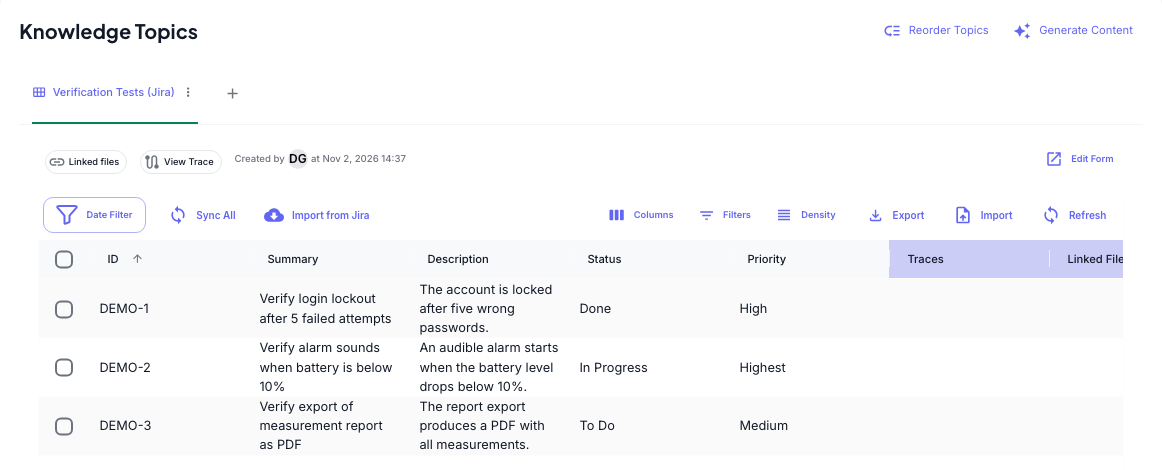
- Sync All imports every issue of the Jira project that is not in the topic yet. It reads up to 500 issues per run, most recently updated first. Records that are already there are not changed.
- Import from Jira lets you pick single issues to add. Issues that are already in the topic are ticked and greyed out. Click Import to add the new ones.
- Refresh loads every record's issue from Jira again and updates the record with the current values. It is shown while the Knowledge Group can be edited.
If you are not connected to Jira, these buttons open the Jira sign-in first and run once you are connected.
Keep these rules in mind:
- Jira is the source. A Jira topic has no button for adding records by hand and no inline editing in the table. If you change a record in CertHub anyway, the next Refresh overwrites it. Change the issue in Jira and click Refresh instead.
- Refresh only updates the fields a record already has. If a field was empty in Jira when the issue was imported, a later Refresh does not add it. If a field becomes empty in Jira, Refresh clears it in CertHub.
- Refresh never deletes records. If an issue can no longer be loaded (for example because it was deleted in Jira or you lost access), its record stays unchanged.
- Deleted records come back with Sync All. If you delete a record in CertHub, the next Sync All imports the issue again.
- You can trace the records like any other CertHub record.
Disconnect
There is no disconnect button. The connection ends when you reload or close the page.
To remove CertHub's access to your Atlassian account completely, remove CertHub from the connected apps in your Atlassian account settings. Records you already imported stay in CertHub.
Limits
- Jira Cloud only.
- One Jira site per connection (the first site Atlassian returns for your account).
- The issue list in the import steps shows up to 50 issues at a time. Use search and filters to find others.
- Sync All reads up to 500 issues per run.
- A Knowledge Group can have at most 30 Knowledge Topics. When the limit is reached, the + button and Submit are disabled.
Troubleshooting
| What you see | What to do |
|---|---|
| Nothing happens after Connect to Jira, or "Authentication cancelled" | The pop-up was blocked or closed. Allow pop-ups for CertHub and try again. |
| The pop-up says "Jira authentication failed" and "OAuth state mismatch. Please try connecting again." | The sign-in was started again from another tab or click. Close the pop-up and click Connect to Jira once. |
| The pop-up says "Jira authentication failed" and "No authorization code received from Jira." | Access was not granted on the Atlassian screen. Click Connect to Jira again and accept the access request. |
| "No projects found" or "No issues found" | Your Jira account cannot see any matching projects or issues, or your Jira connection has expired. Check the search and filters, then reload the page and connect again. |
| + is disabled | You don't have permission to create Knowledge Topics, or the Knowledge Group already has 30 topics. Hover over the button to see why. |
| "Failed to create records: …" after Submit | The Knowledge Topic was created, but its records were not. Open the topic and use Import from Jira or Sync All to add the issues. |