Submissions
Alright, we are already at the last stage of our Product Lifecyce, the Submission part! 🎉
The Submission Module in CertHub provides an organization for Documents, that can be rendered to a PDF or zip - ready to submit to your NB.
Submission can have:
- Custom Chapters, Sections and Subsections.
- approved Documents
- external files as appendix or not
Creating Submissions
Naviate to your List of Submissions:

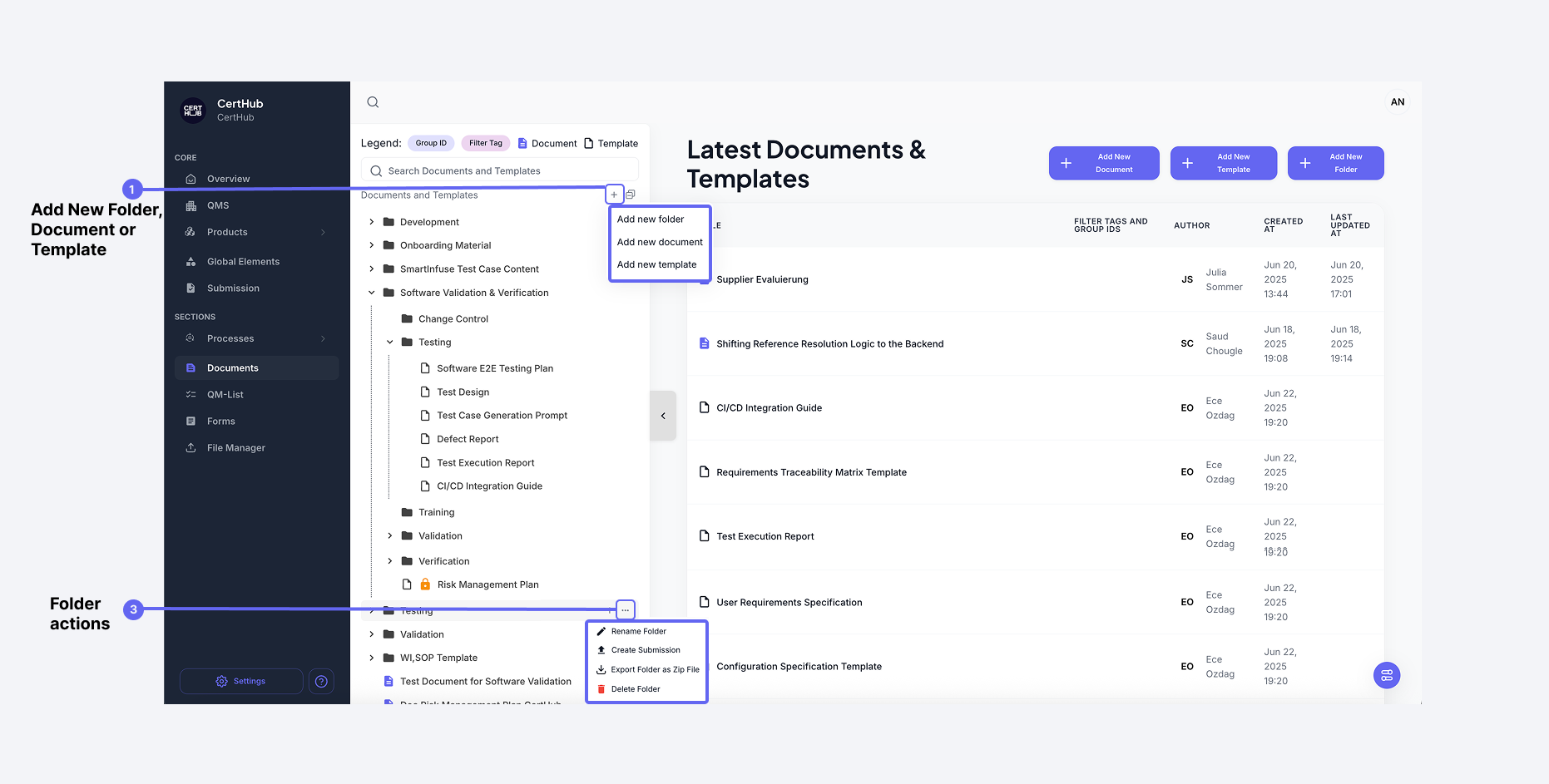
- You can create a Submission from any folder in your Document Management. Open the menu for a folder and click on create Submission. Please be aware, that only approved Documents will be added (no Templates, no unapproved Documents).
- You can also create a Submission from scratch and build your own structure for submissions.
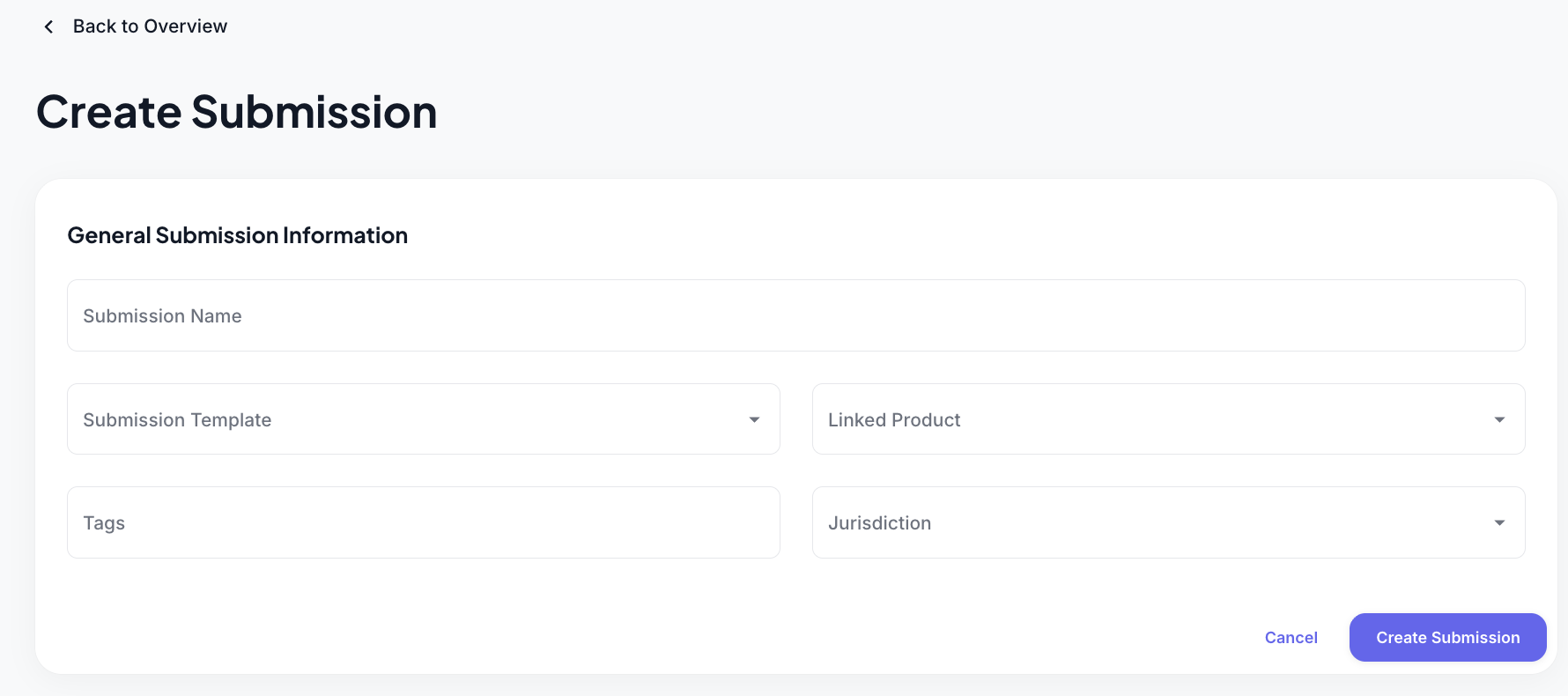
- You can also use Submission Templates to create your Submission
Just select the Submission Template you want to use when creating a new Submission.
Managing Submissions
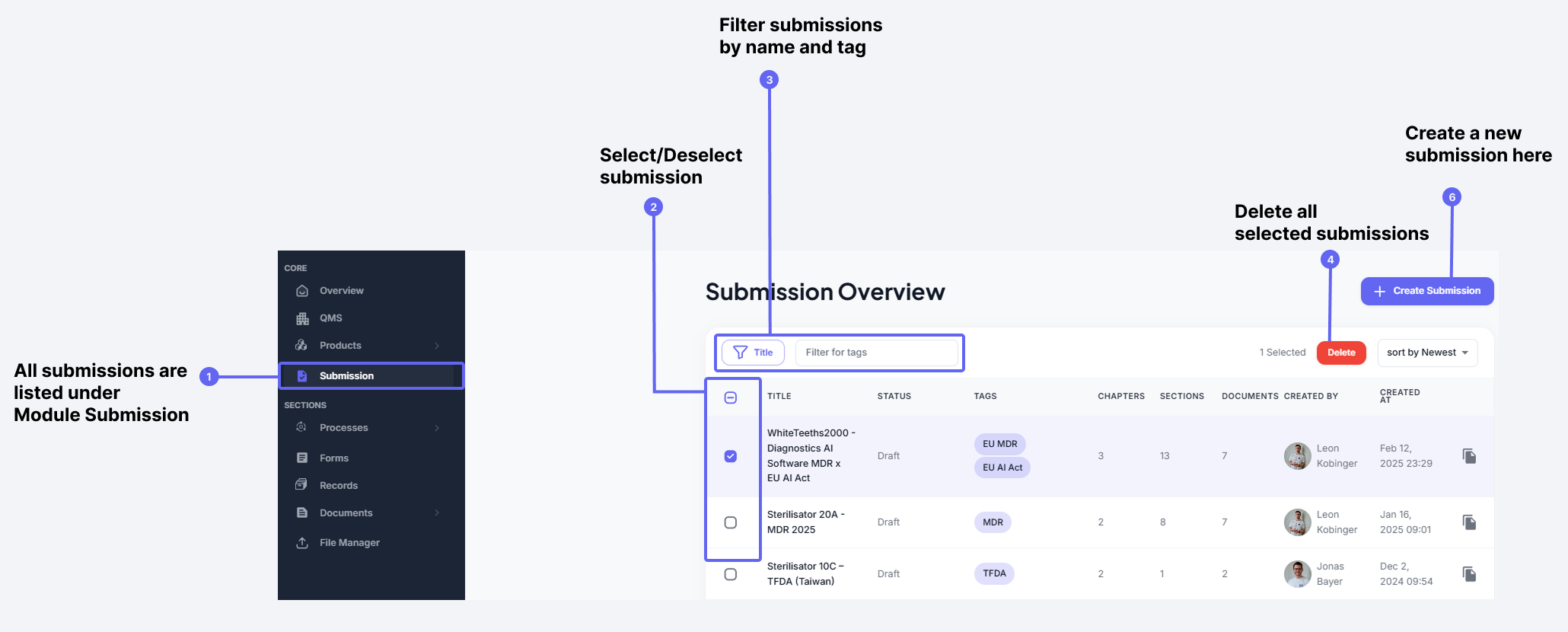
- Viewing Submissions: All Submissions are listed in a table.
- Selecting Submissions: You can select or deselect Submissions (2) from the list.
- Deleting Submissions: Once selected, Submissions can be deleted (4).
- Filtering Submissions: Use the filter option (3) to search for Submissions by name or given tag. Only Submissions that match the specified filter will be displayed.
- Creating a New Submissions: Click the Create Submission button to add a new Submissions.
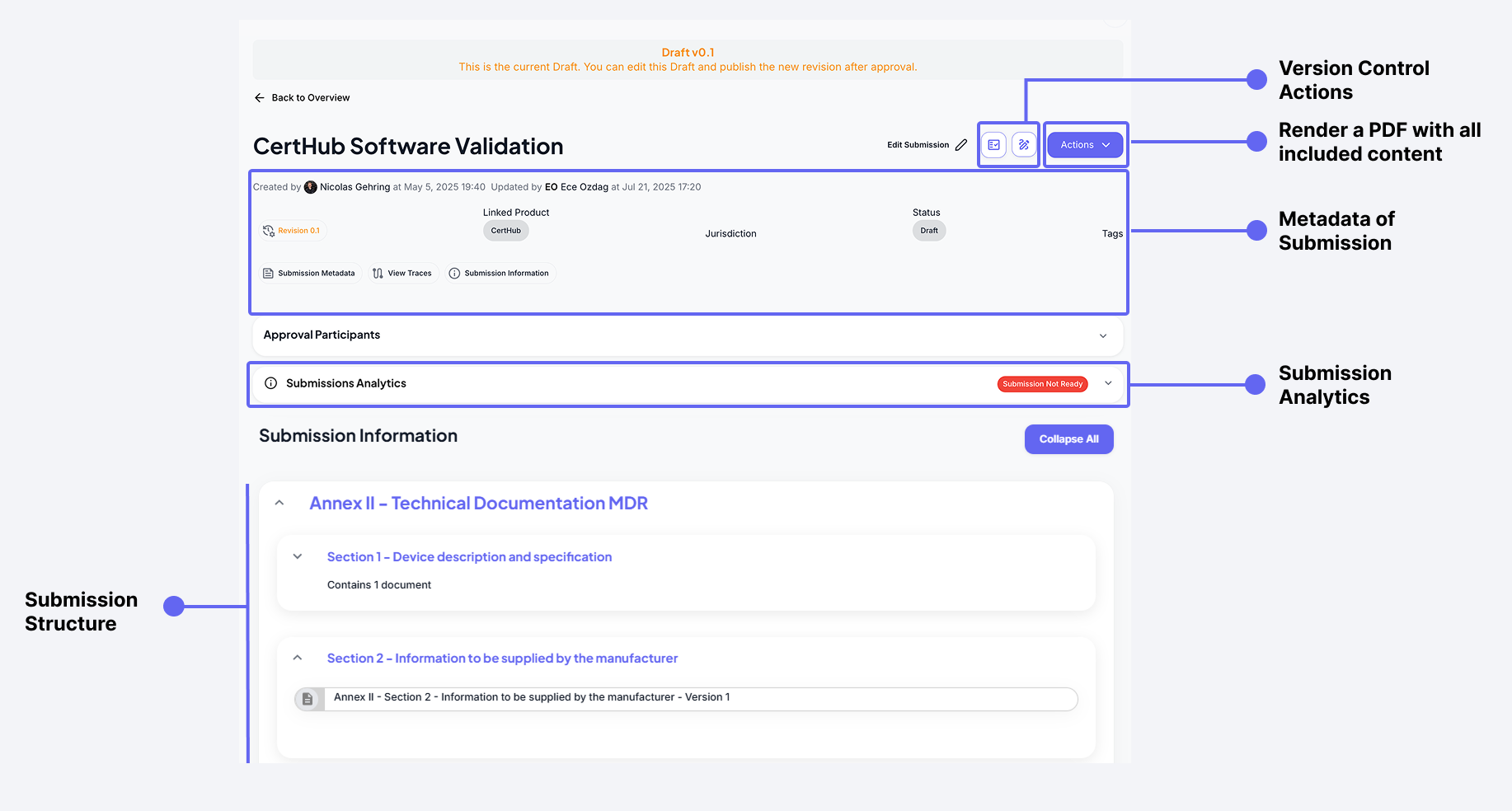
Submissions contain metadata that help categorize and organize them.
Submission Overview
Each submission includes:
- Product: The product the submission is created for.
- Tags: Labels assigned to the submission for easier filtering and identification.
- Additional Info, including:
- who created the Submission
- who updated the submission as last person
- status indication (Draft, In Approval, Final)
- Jurisdiction (MDR, FDA etc.)
Of course, each submission has a version history as well. Have a look at how Versioning and Approval works in detail.
Once it's final, you can download a big PDF or a .zip folder to send to your NB through the Actions Button.
Submission Analytics
Meanwhile, you can always check the status of your submission through our submission analytics. We will tell you if all your documents are ready and approved, but more importantly, all referenced data has been filled out!
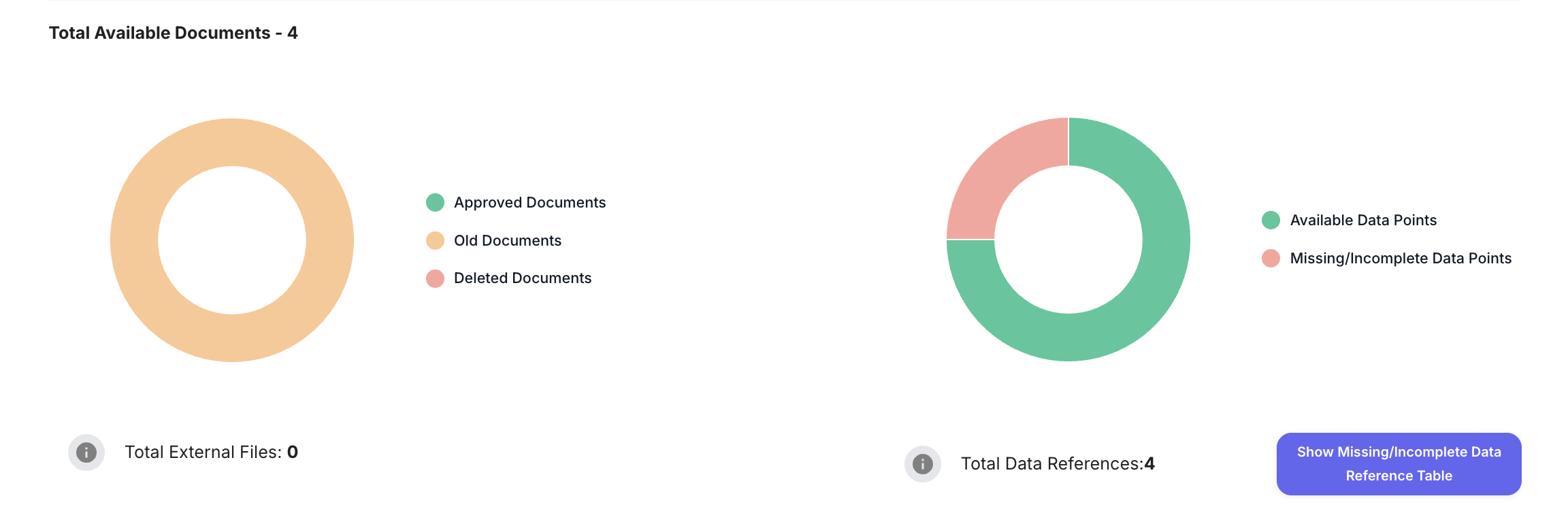
By clicking on Show missing/incomplete Data you will see an exhaustive list of which data is missing and where. Of course, you can jump directly to the affected document and fix it!
Editing a Submission
To edit a submission, i.e. add, change and delete content, click the "Edit Submission" button.
Chapters and their Content
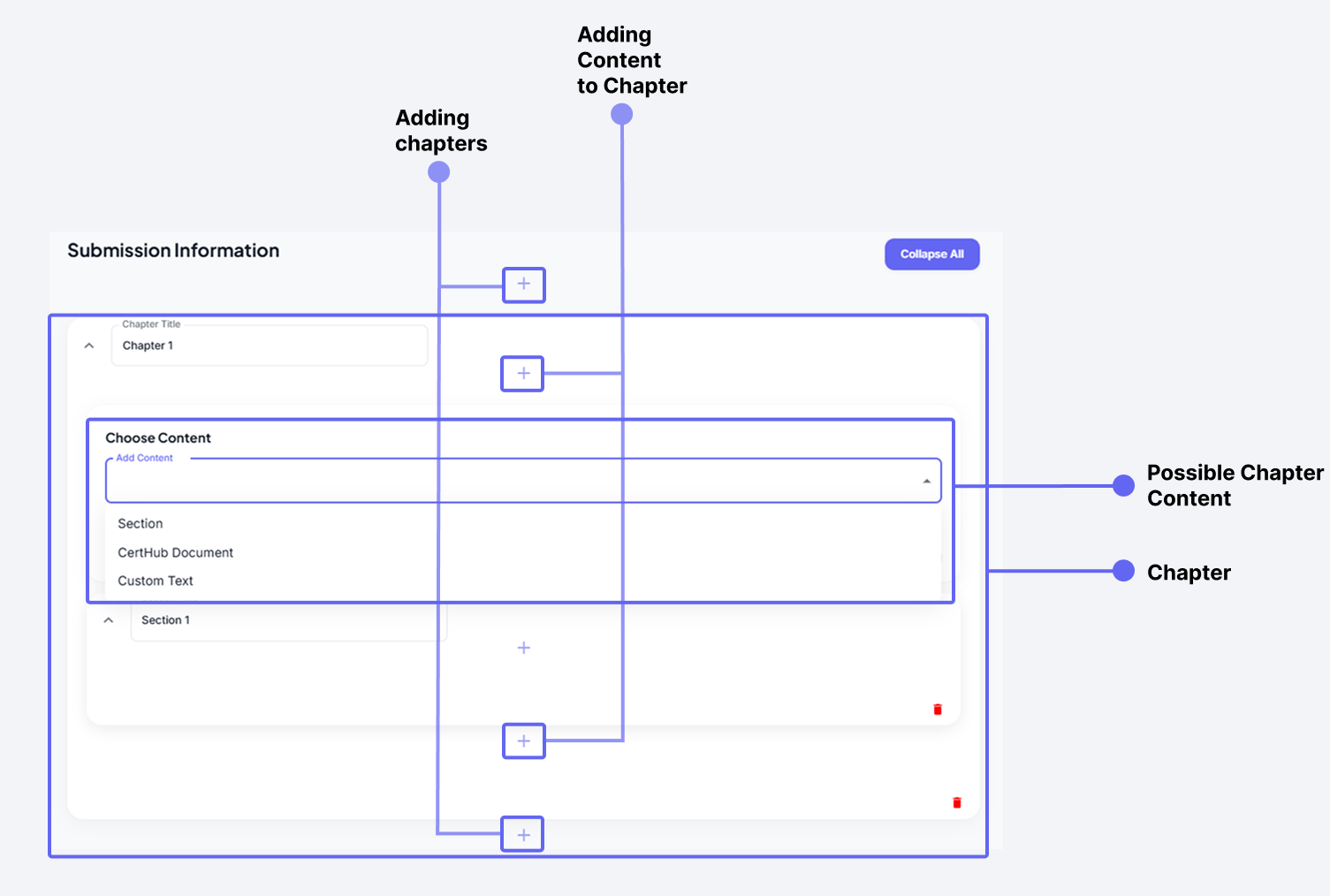
Adding Chapters
- Click the ➕ button to add a new chapter.
- Each chapter requires a title.
Adding Content to a Chapter
- Click the ➕ button within a chapter to add chapter content.
- A chapter can contain an unlimited number of:
- Sections
- CertHub Documents
- Custom Text
Sections and their Content
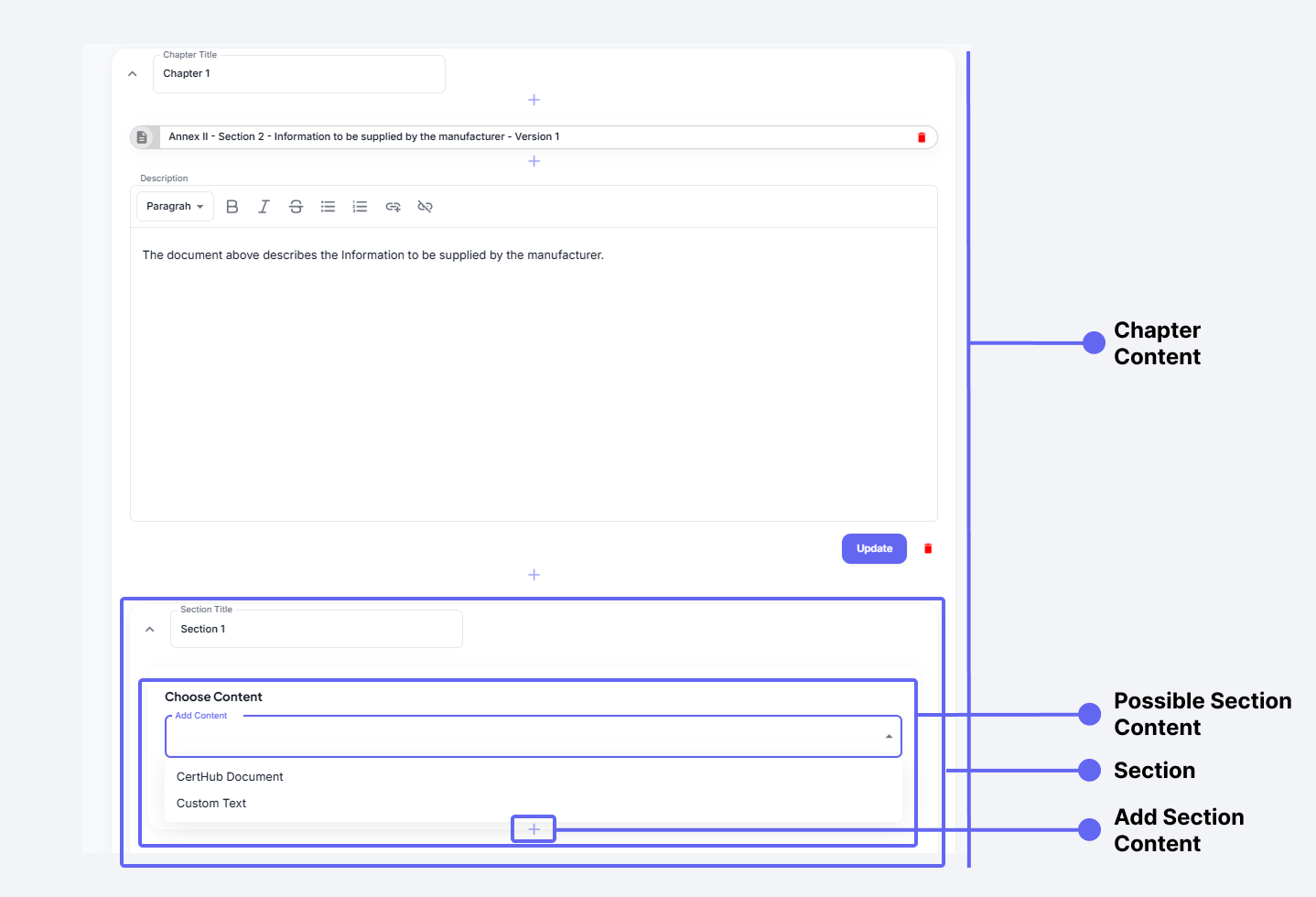
Adding Sections
- Sections can only exist within Chapters. See points above to add a Section to a Chapter.
Adding Content to a Section
- Click the ➕ button within a section to add section content.
- A section can contain an unlimited number of:
- CertHub Documents
- Custom Text
Tracking Document Versions in a Submission
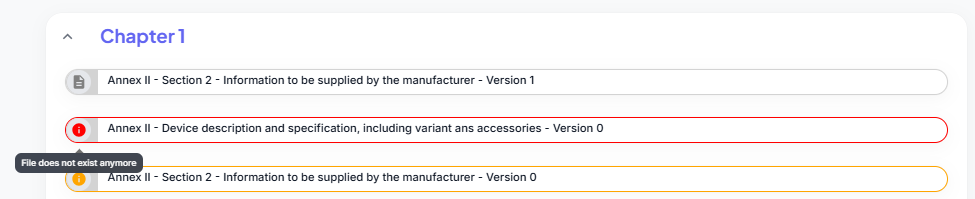
In a Submission, the version of each linked document is tracked to ensure accuracy and up-to-date information.
-
Outdated Documents:
- If a linked document has a newer version available, it is marked orange.
- Hovering over the information icon ⓘ reveals a message indicating that the document is outdated.
-
Deleted Documents:
- If a linked document has been deleted and is no longer available, it is marked red.
- Hovering over the information icon ⓘ shows that the document no longer exists.
Updating or Replacing Documents
Users have two options when a document is outdated or missing:
- Update to the latest version of the document by bulk fetching the newest available approved document.
- Remove the outdated/missing document and link an available one.
This system ensures that all included documents remain current and valid within the Submission.
Generating a Submission PDF
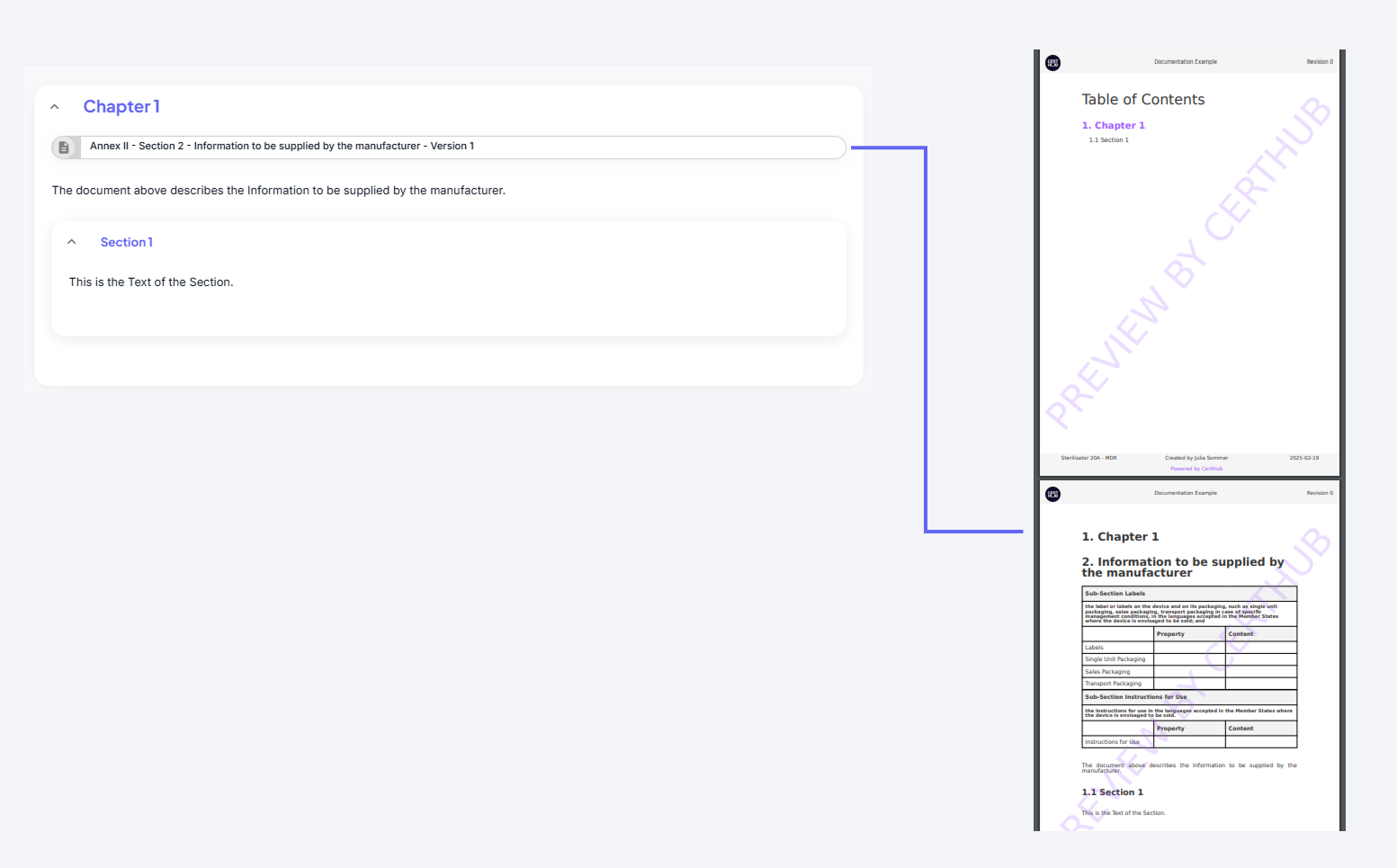
To create a PDF of your submission:
- Click the "Create Submission PDF" button.
- The submission will be rendered into a PDF and downloaded automatically.
What’s Included in the PDF?
The generated PDF captures the current state of the submission, including:
- Full Submission Structure: Mapped to a Table of Contents.
- Resolved Document Content: All included documents will be fully rendered.
- Custom Text: Any custom text added to the submission will be included.
- External Files: Attached in the appendix or where they have been inlcuded in the strucutre (that*s your decision)
- Company Logo: If a company logo is set, it will appear in the PDF.
- Page Numbering: e.g. 5/80 on each page
- Approval Information: Who approved what and when for each submission
- Document Status indication: We display the version of each document