What are QM Lists?
QM Lists (Quality Management Lists) provide a structured way to view and manage documents based on templates. Think of them as dynamic spreadsheets where:
- Each row represents a document
- Each column represents an input field from the template
- The content shows the actual data entered in each document
Key Features
- Template-Based: All documents in a QM List are based on the same template, ensuring consistency
- Real-Time Updates: Lists automatically update to reflect any changes in documents before they are locked
Creating a New QM List
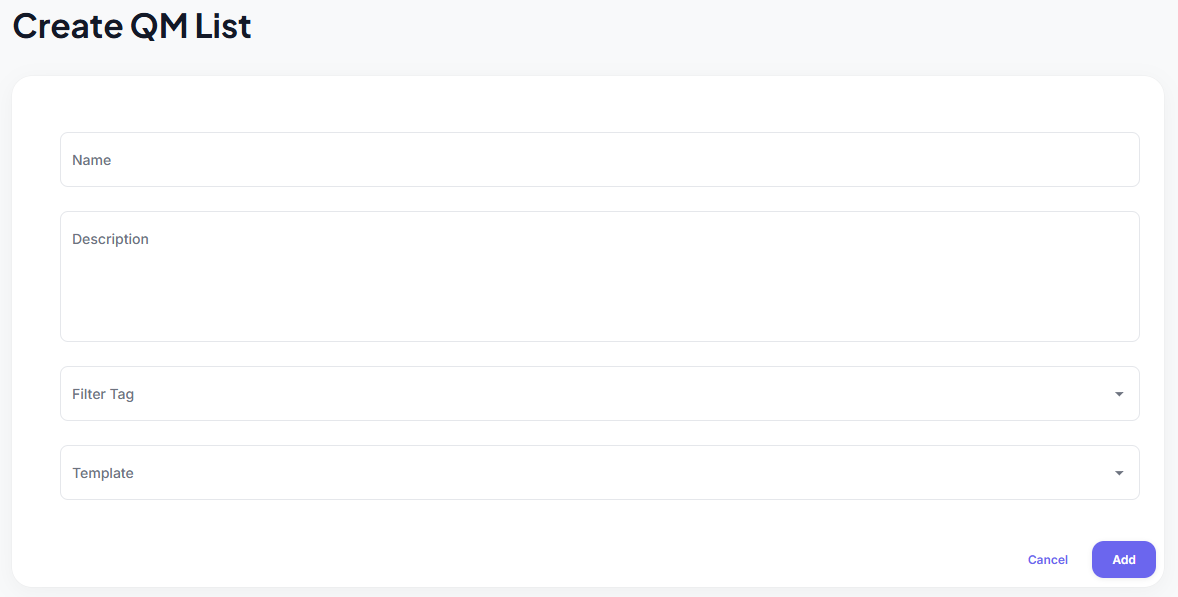
- Navigate to the QM Lists section
- Click the "Create QM List" button
- Fill in the information:
- Title (required): Give your list a descriptive name
- Description (optional): Add helpful context about the list's purpose
- Filter Tag (optional): Select a Filter Tag to create QMLists based on multiple connected Templates
- Templates (required): Select the templates your list will be based on
Table Overview: All QM Lists
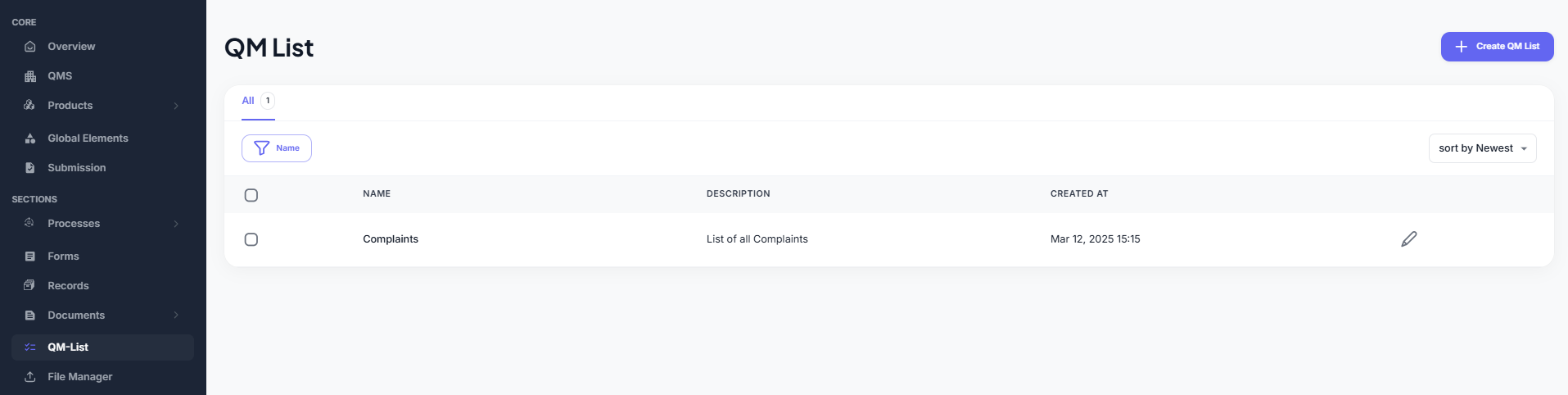
The QM Lists Table provides a central overview of all existing QM Lists in the system.
Each list is displayed as a row in the table and can be easily managed using the available features:
- Filter by name to quickly find specific lists
- Sort by creation date (newest or oldest first)
- Delete lists you no longer need
Clicking on a specific entry in the table will take you directly to the detailed view of that QM List, where you can manage its content and structure.
Working with a Specific QM List
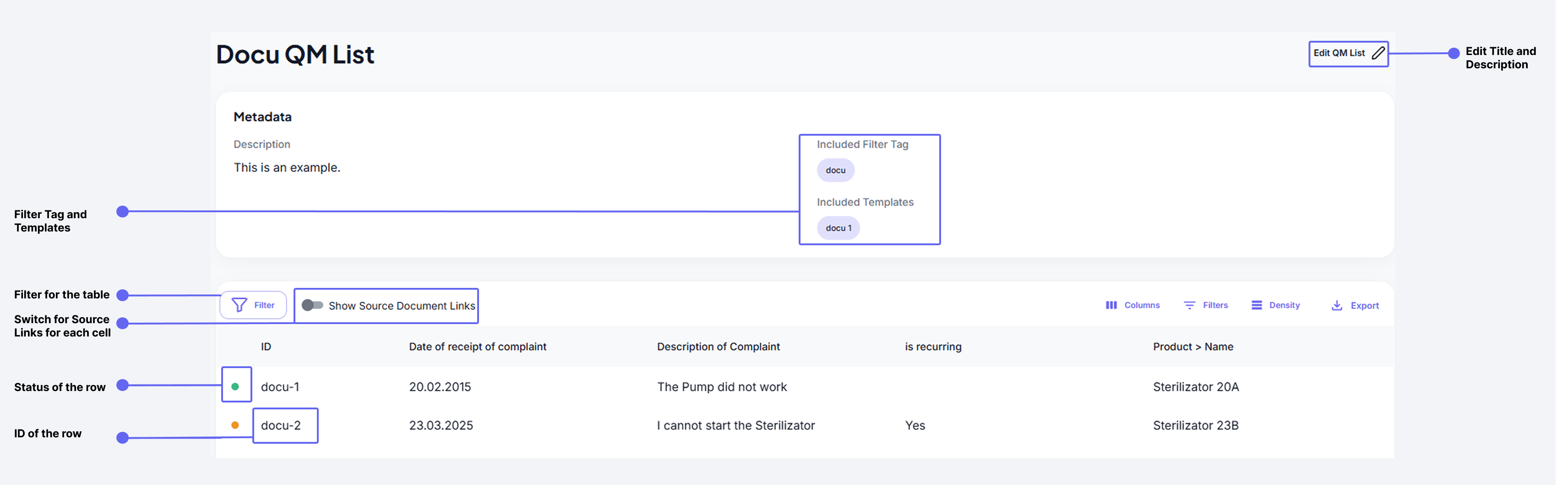
A QM List consists of several key components:
- Title and Description: Each list has an editable title and description to help identify its purpose
- Filter Tag Connection: If set, the list is based on Filter Tags and groups Documents by the Group IDs defined for that Filter Tag.
- Template Connection: Lists are connected to a specific template, displaying data from all documents using that template
- Table View: Data is presented in a table format where:
- Columns represent input fields from the template
- Rows show individual documents and their data
- Filtering Options:
- Use the date-range filter to narrow down your view
- Use the additional filters on the right to disable columns or set specific content a column must contain.
- Export Data: Export data as a csv or xlsx file, apllying all previously specified filters.
- Source Links: Toggle the switch button at the top of the table to enable document links, allowing you to quickly navigate to source documents
- Status: The dot shows whether the document(s) are locked (i.e finalised) or if there are still open documents.
- ID: The ID column shows on whihc document or Group (of documents) the row is based on.
Working with a Multi QM List
A Multi QM List allows you to view and manage data from multiple related documents in a single table view. This is particularly useful when you need to track information that spans across different document types that are logically connected.
Key Features
-
Filter Tag Based Organization
- Only templates with the specified Filter Tag can be included in the list
- Documents are automatically grouped based on their Filter Tag Group ID
- Related documents appear in the same row for easy comparison
-
Data Display
- Each row represents a group of related documents
- Columns show data from different fields across the connected documents
- Source links in each cell take you directly to the specific document containing that data
-
Status Tracking
- Visual indicators show whether all documents in a group are finalized (locked)
- Easily identify groups with pending or open documents
-
Document Identification
- Each row displays either a single document ID or a group ID
- Quickly locate and reference specific documents or document groups
Common Use Cases
QM Lists are versatile tools that can be used for various purposes, such as:
- Tracking forms and their data in a table format
- Managing records, e.g., complaints
- Managing data across multiple Documents that are logically conncted
- Monitoring quality control documents
- Reviewing inspection results
- Creating audit reports
- Use Filter Tags consistently across related templates to ensure proper grouping
- Regularly check the status indicators to track document completion
- Use source links to verify data directly in the original documents
- Group related documents using the same Filter Tag Group ID for optimal organization
- Regular reviews of your lists help maintain data organization