BPMN Process Editor
The Process Editor is built on top of our BPMN foundation, providing a powerful yet focused environment for creating and modifying quality processes. For an introduction to BPMN basics and available elements, see our BPMN Introduction Guide.
Editor Interface
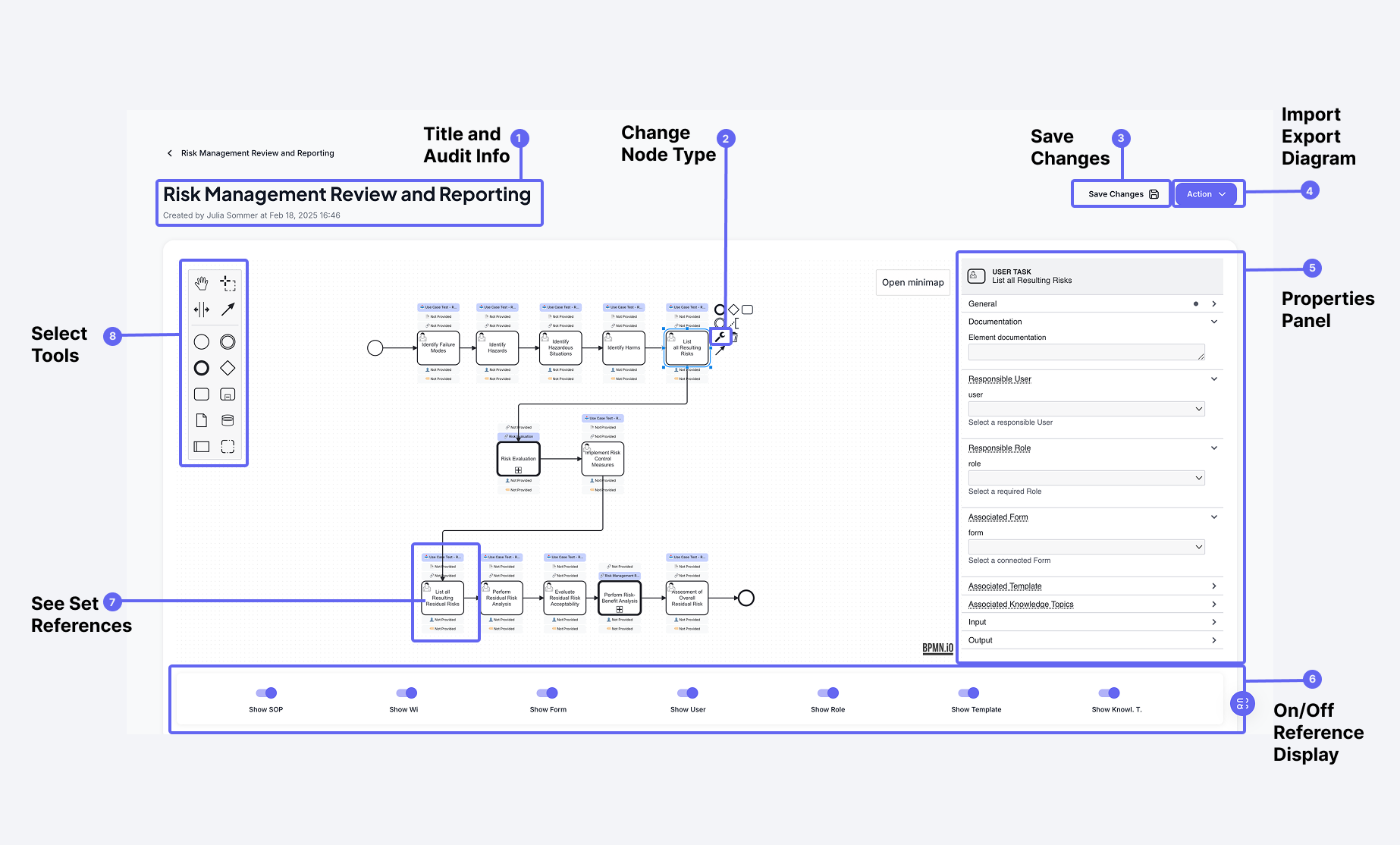 The Process Editor interface with its key components labeled
The editor interface consists of several key areas:
-
Title, Audit Info, and Sync Status
- Process name and metadata
- Creation and modification information
- Version tracking
- Autosave: There is no save button; every change is automatically synced. The green cloud icon next to the title indicates the synchronization status. When you make changes, including linking items like templates, the editor will automatically save and sync your work.
-
Toolbar
- Access undo and redo operations
- Zoom in and out of the diagram
- Toggle the visibility of linked items such as roles, templates, and other references
- BPMN element palette for adding process elements (start/end events, tasks, gateways)
- Basic manipulation tools (move, align)
- Connection tools for creating process flows
-
Change Node Type
- Modify element types using the wrench icon
- Convert between different activity types (Standard Task, User Task, Call Activity)
- Access element-specific configurations
-
Properties Panel
- Dynamic configuration options based on element type
- Link management for forms, templates, and other references
- Documentation and metadata fields
-
On/Off Reference Display
- Toggle visibility of different reference types
- Control what information appears above process elements
- Customize diagram view for different purposes
-
See Set References
- View all linked items in the current process
- Quick overview of process dependencies
- Navigate to referenced elements
-
Import/Export Diagram
- Export process as BPMN and image files
- Import existing BPMN processes
- Access diagram options
Working with Elements and Links
The properties panel adapts to show relevant options based on the selected element type. The most important configuration happens through the element type selection (wrench icon) and subsequent linking options.
Element Types and Available Links
| Activity Type | Purpose | Available Links |
|---|---|---|
| Standard Task | Basic process step | None |
| User Task | Human interaction required | Forms, Document Templates, Knowledge Topics |
| Call Activity | Execute another process | SOPs, Work Instructions |
| Collapsed Subprocess | Encapsulate a group of activities in a separate flow | None directly, element specific for activities under the subprocess |
For guidance on when to use Forms, Templates, or Knowledge Topics, see our Data Input Guide.
Dynamic Properties
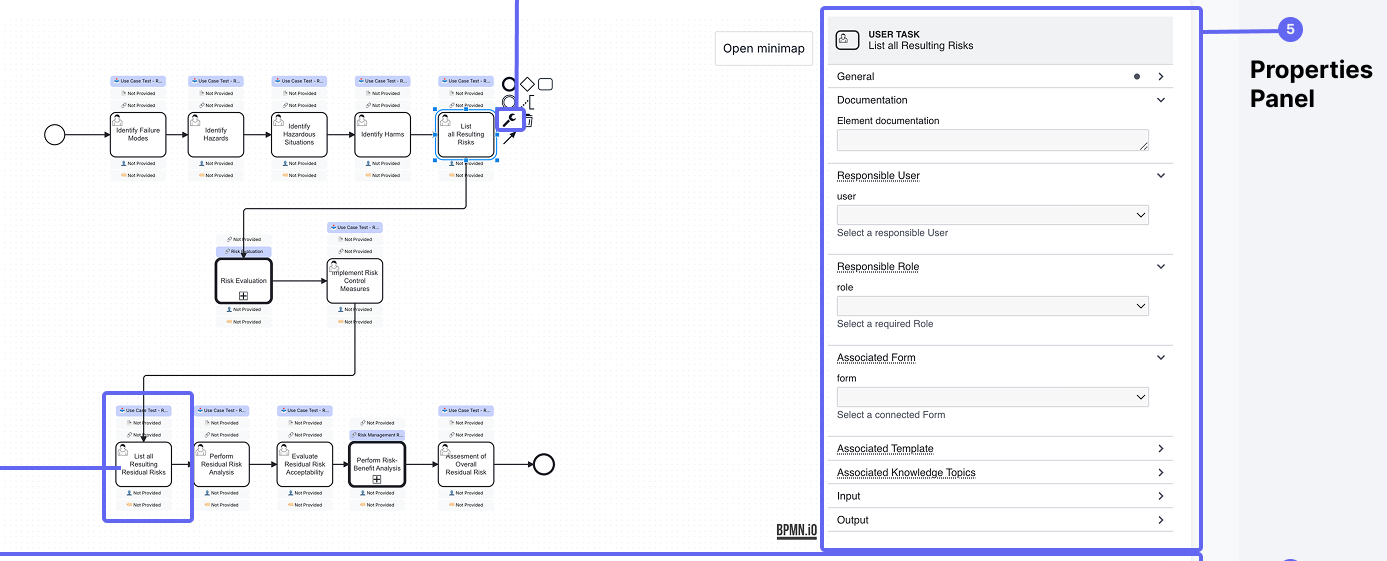
The properties panel shows different options depending on the selected element:
-
For Process Steps (Activities)
- Basic information (name, description)
- Responsible users and roles
- Available links based on activity type
- Input and output parameters
-
For Gateways
- Gateway conditions
- Decision logic
- Default paths
-
For Events
- Event triggers
- Event conditions
- Timing settings (if applicable)
Setting Up Links
-
Select an activity in your process
-
Click the wrench icon to set the appropriate type:
- User Task: For human interactions requiring input
- Call Activity: For referencing other processes
- Standard Task: For basic process steps
-
In the properties panel, you can then:
-
For User Tasks:
- Link Forms for structured data collection
- Add Templates for document-based workflows
- Connect Knowledge Topics for product data
-
For Call Activities:
- Link to other SOPs
- Reference Work Instructions
-
-
All linked items appear above the activity in the diagram and can be toggled using the reference display controls at the bottom.
Automatic Traceability
When you assign other CertHub objects to process steps, the Process Editor automatically creates traces between the process and the referenced items. Example: When editing the SOP "Complaint Handling" and linking the "Complaint Form"-Template to the step "Fill out Complaint Form", then the SOP "Complaint Handling" will automatically receive a Trace to the Template, because it has been used in the Process Editor.
This automatic tracing ensures:
-
Consistency Between Visual and Data Relationships
- The visual representation in the process diagram always reflects the actual data relationships
- Any object referenced in the process is properly traced for impact analysis
-
Bidirectional Relationships
- When an object is linked to a process element, a trace is automatically created from the process to the object
- A corresponding backward trace is also created from the object to the process, allowing you to see where the object is being used
-
Trace Management
- Traces are automatically added when new references are created
- Traces are automatically removed when references are deleted
- Duplicate references only create a single trace, maintaining data integrity
This automatic tracing happens seamlessly in the background, eliminating the need for manual trace creation and ensuring complete traceability across your quality system.
In the Tracer component, automatically created traces are visually distinguished from manually created ones, allowing you to easily identify how relationships were established.
Import and Export
The Process Editor allows you to export and import processes as pictures and bpmn files for backup, sharing, or reuse:
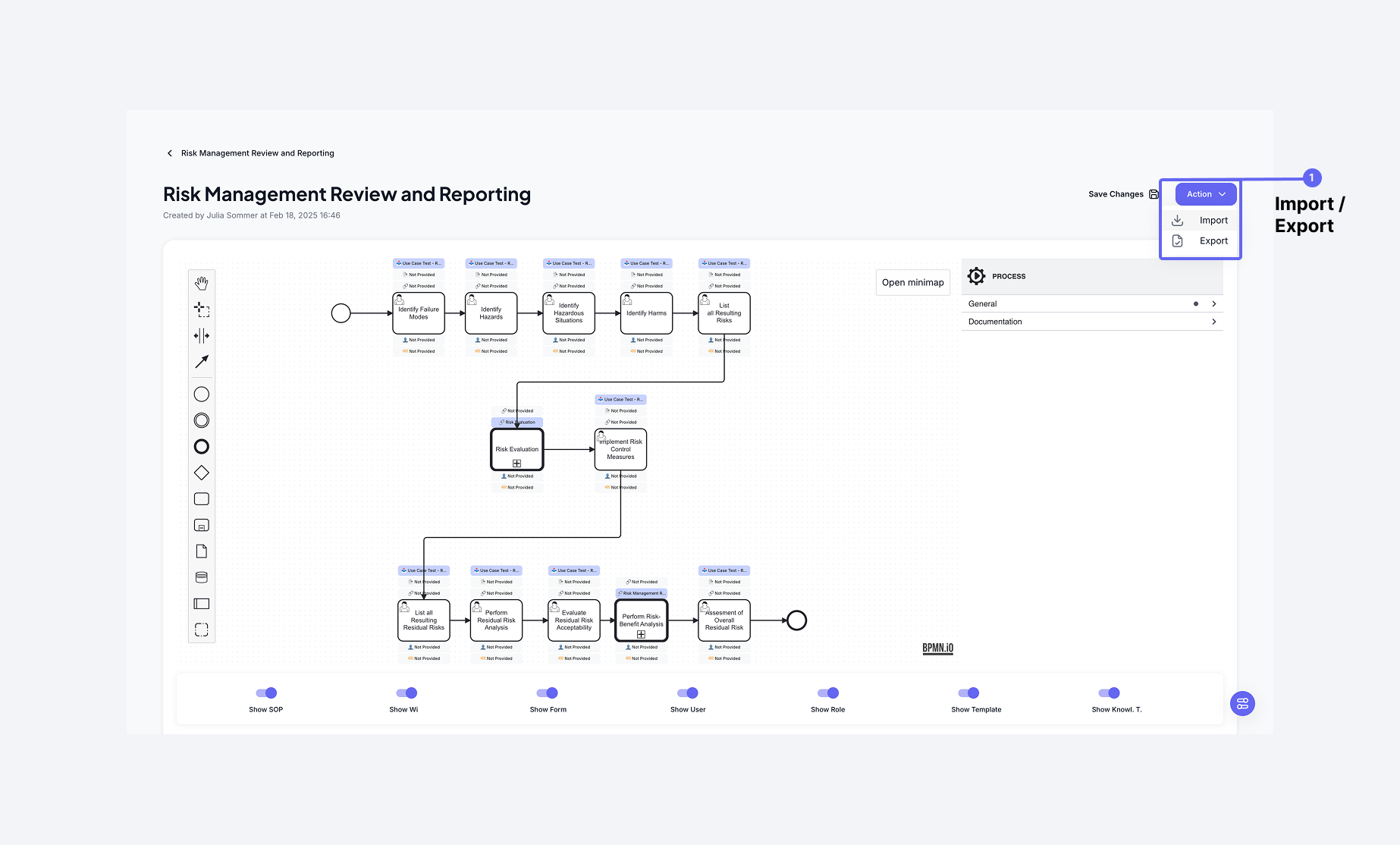 The Process Editor interface with the import and export options highlighted
Exporting Processes
When you export a process, you'll receive two files:
- A
.bpmnfile containing the complete process definition, including all configurations and links - A
.svgimage file showing the visual representation of your process
You can access export options through the Actions menu in the top right corner.
Importing Processes
To import a process:
- Use the Import option from the Actions menu
- Select a
.bpmnfile - The process will be recreated with all its configurations
The .bpmn file contains all the information needed to recreate the process, making it perfect for:
- Backing up process definitions
- Sharing processes between systems
- Creating process templates