Submissions
Submissions in CertHub provide a collection of Documents, that can be rendered to a PDF.
Submission allow you to:
✅ Create custom Chapters and Sections.
✅ Fill Chapters and Sections with additional Custm Text and CertHub Documents.
✅ Dynamically change the included content.
✅ Render a PDF of the current Submission state.
Creating Submissions
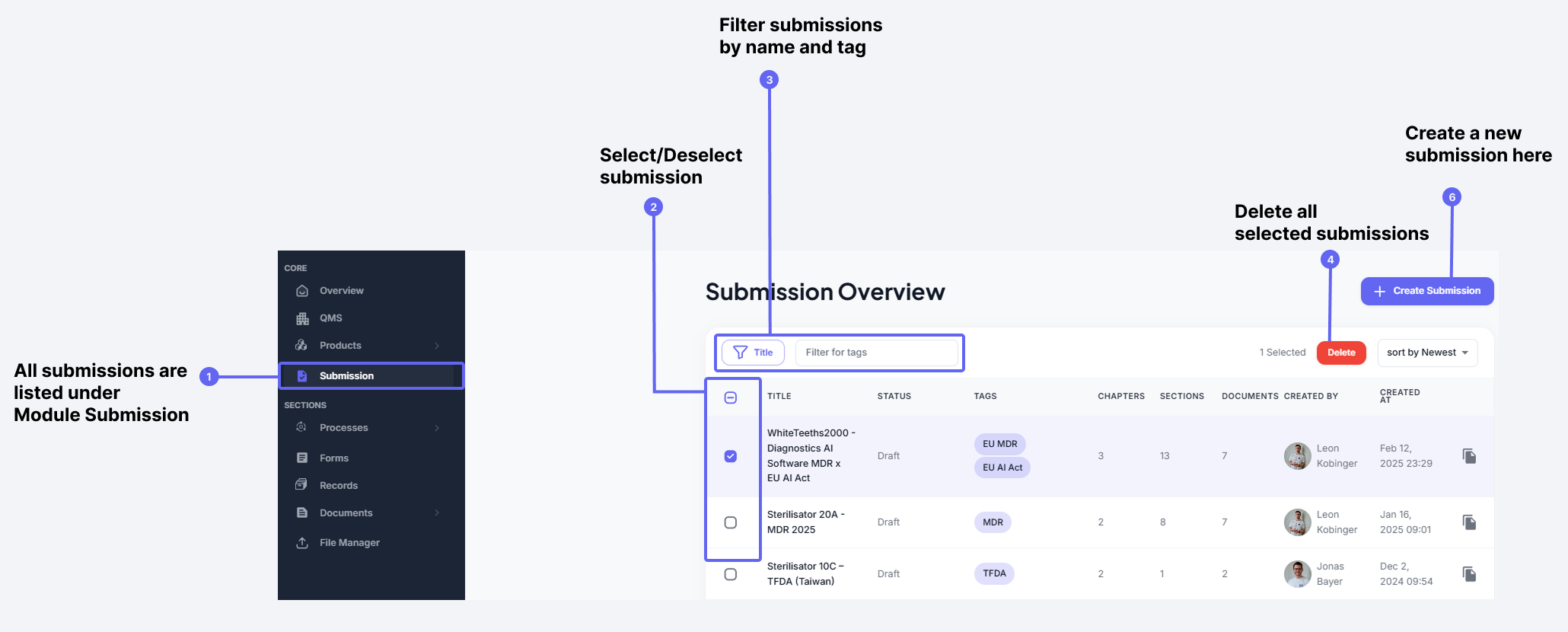
Accessing the Submission Module
You can find the Submission Module in the sidebar under Submission.
Managing Submissions
- Viewing Submissions: All Submissions are listed in a table.
- Selecting Submissions: You can select or deselect Submissions (2) from the list.
- Deleting Submissions: Once selected, Submissions can be deleted (4).
- Filtering Submissions: Use the filter option (3) to search for Submissions by name or given tag. Only Submissions that match the specified filter will be displayed.
- Creating a New Submissions: Click the Create Submission button to add a new Submissions.
Submission Structure
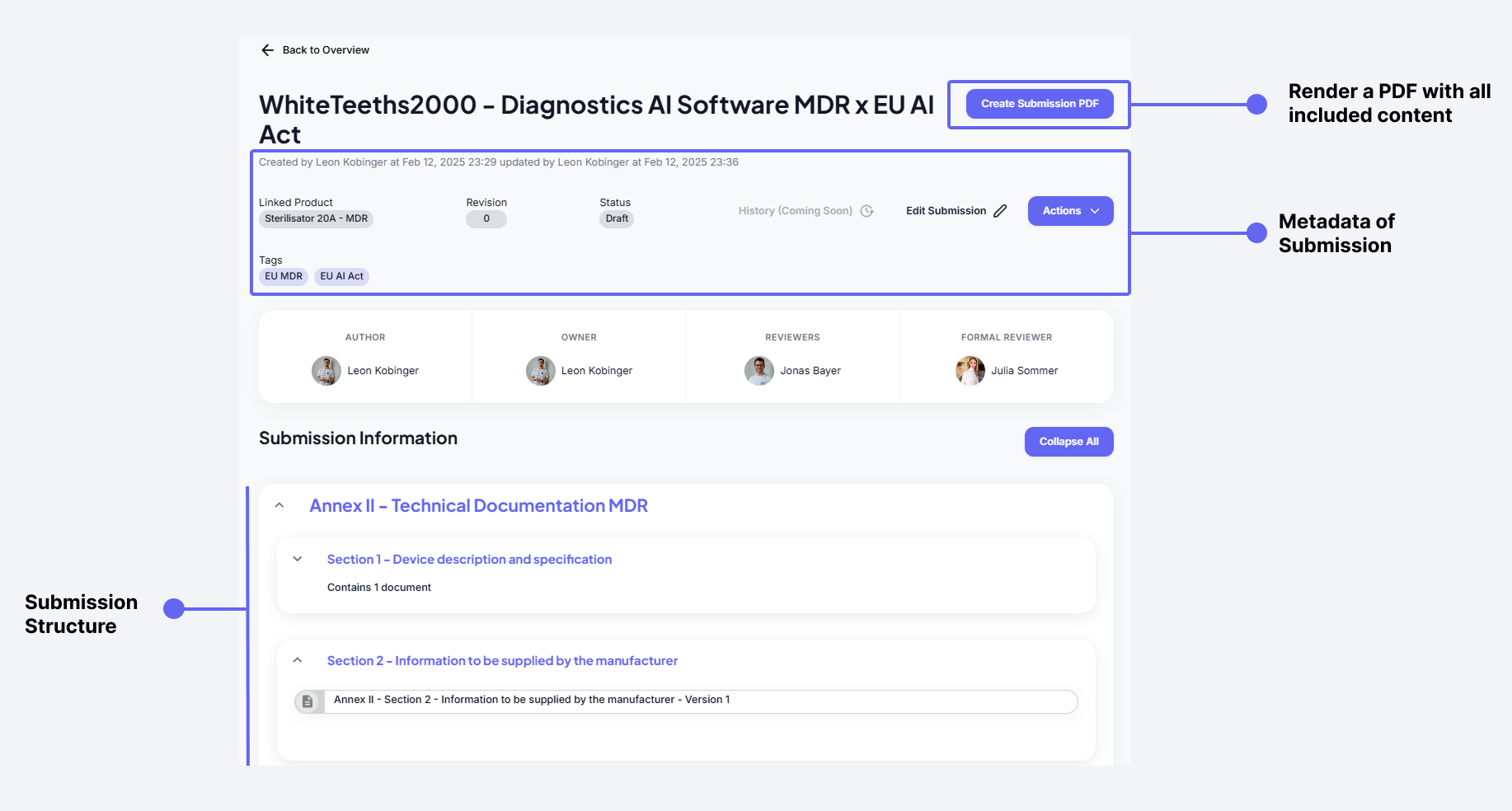
Submissions contain metadata that help categorize and organize them.
Submission Metadata
Each submission includes:
- Product: The product the submission is created for.
- Tags: Labels assigned to the submission for easier filtering and identification.
- Audit Info, including:
- Author
- Owner
- Reviewers
- Formal Reviewer
Submission Structure
Below the audit information, the Submission Structure is displayed.
- A submission consists of an arbitrary number of chapters and sections.
- Chapters and sections help organize the content within the submission.
Editing a Submission
To edit a submission, i.e. add, change and delete content, click the "Edit Submission" button.
Chapters and their Content
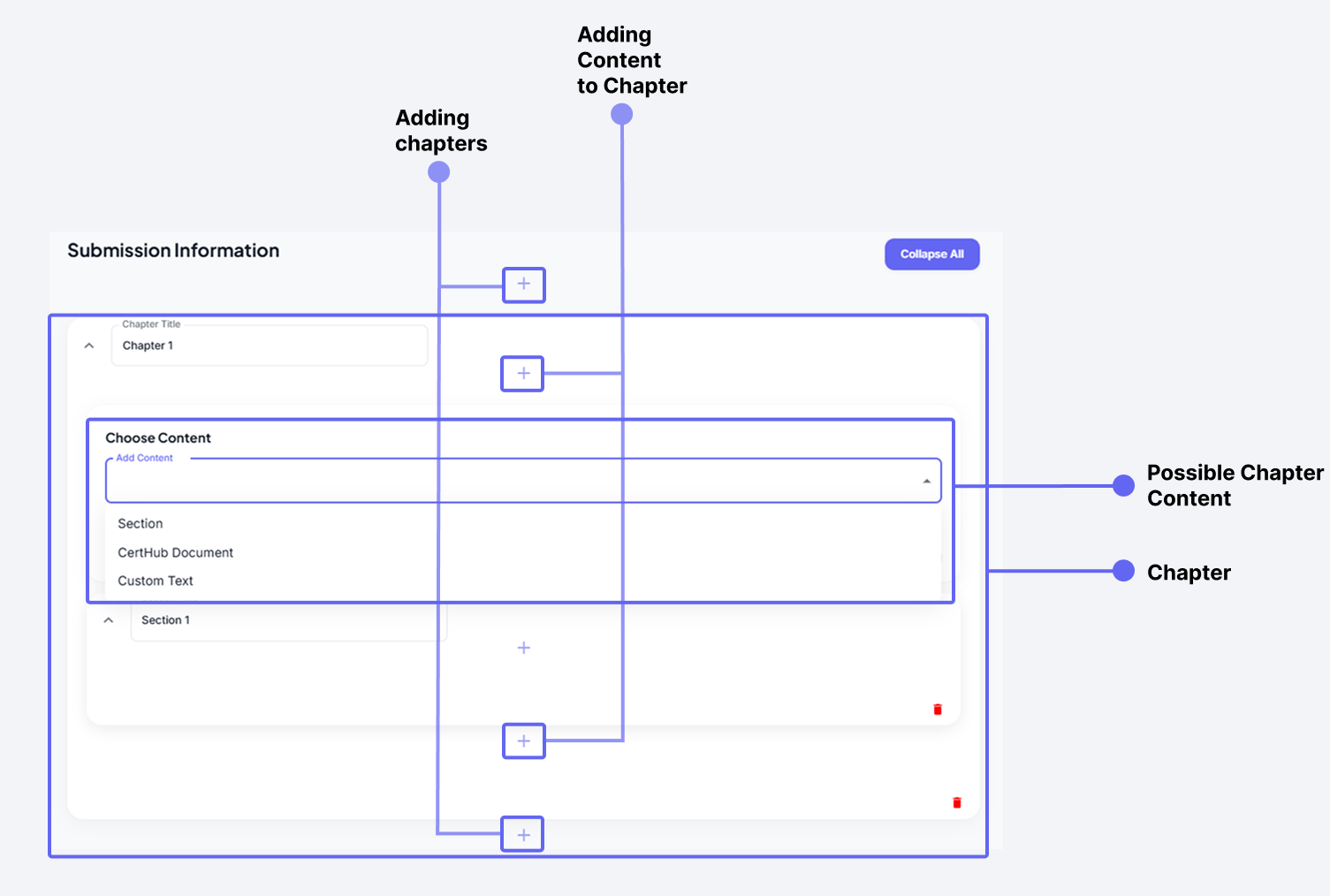
Adding Chapters
- Click the ➕ button to add a new chapter.
- Each chapter requires a title.
Adding Content to a Chapter
- Click the ➕ button within a chapter to add chapter content.
- A chapter can contain an unlimited number of:
- Sections
- CertHub Documents
- Custom Text
Sections and their Content
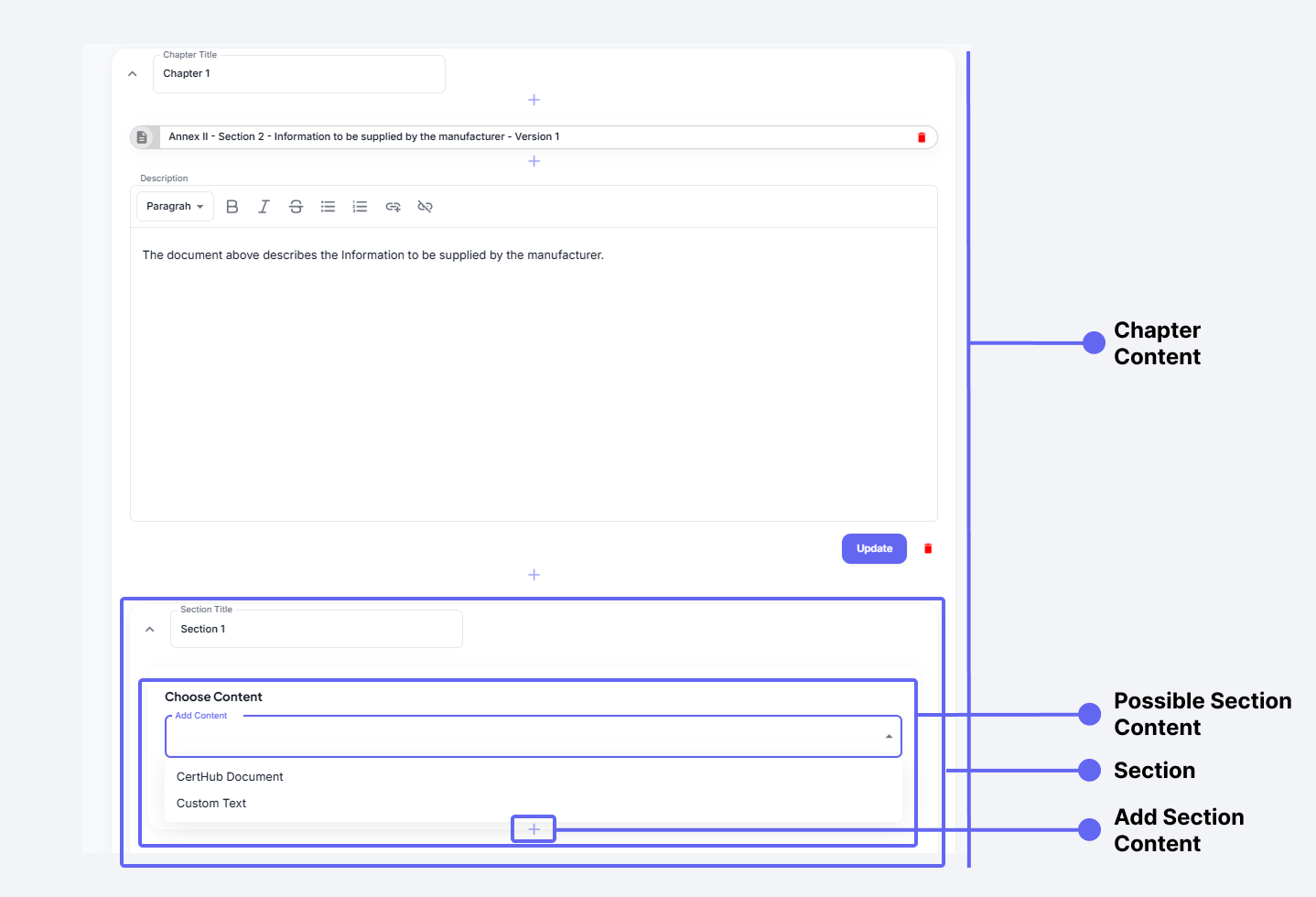
Adding Sections
- Sections can only exist within Chapters. See points above to add a Section to a Chapter.
Adding Content to a Section
- Click the ➕ button within a section to add section content.
- A section can contain an unlimited number of:
- CertHub Documents
- Custom Text
Tracking Document Versions in a Submission
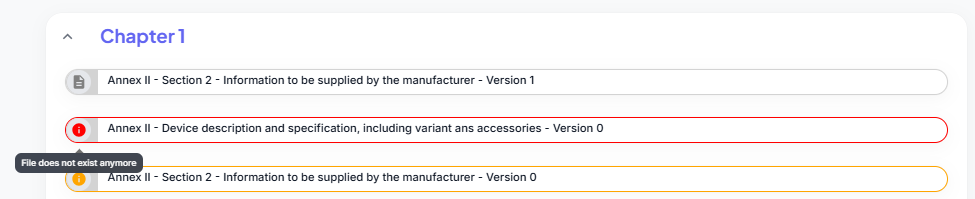
In a Submission, the version of each linked document is tracked to ensure accuracy and up-to-date information.
-
Outdated Documents:
- If a linked document has a newer version available, it is marked orange.
- Hovering over the information icon ⓘ reveals a message indicating that the document is outdated.
-
Deleted Documents:
- If a linked document has been deleted and is no longer available, it is marked red.
- Hovering over the information icon ⓘ shows that the document no longer exists.
Updating or Replacing Documents
Users have two options when a document is outdated or missing:
- Update to the latest version of the document.
- Remove the outdated/missing document and link an available one.
This system ensures that all included documents remain current and valid within the Submission.
Generating a Submission PDF
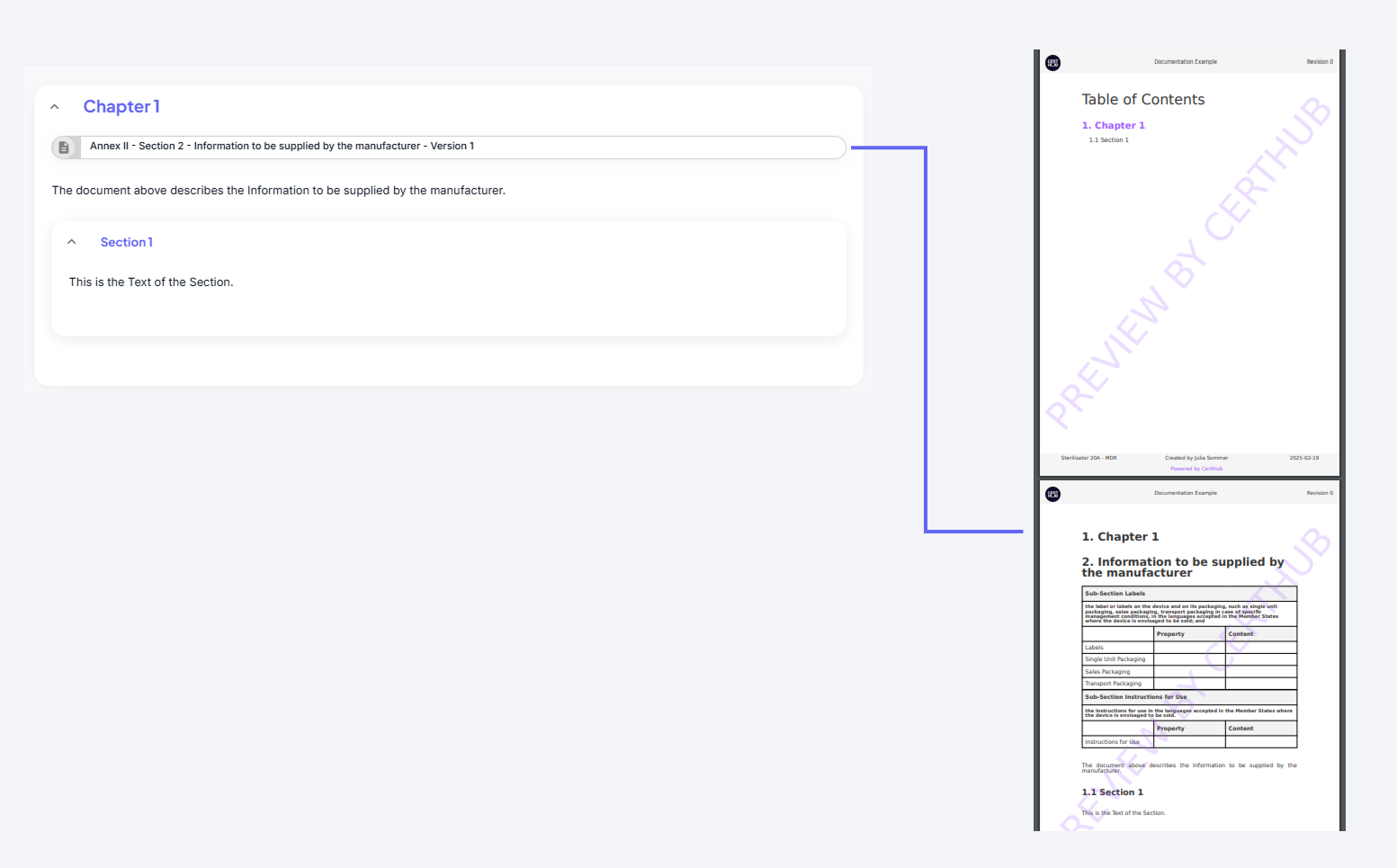
To create a PDF of your submission:
- Click the "Create Submission PDF" button.
- The submission will be rendered into a PDF and downloaded automatically.
What’s Included in the PDF?
The generated PDF captures the current state of the submission, including:
- Full Submission Structure: Mapped to a Table of Contents.
- Resolved Document Content: All included documents will be fully rendered.
- Custom Text: Any custom text added to the submission will be included.
- Company Logo: If a company logo is set, it will appear in the PDF.