Navigating Processes
Let' move on to the details and the editing adn teh adapting of our QMS. For this, we ned to understand how Processes are actually structured inside CertHub.
Understanding Processes in CertHub
Every process in CertHub follows a standardized structure. Each process contains:
- Basic information (Name, Abbreviation)
- Process Responsibilities (author, owner, reviewers)
- Process content (goal & scope, process flow, short description)
- Conected items (Forms, Tempaltes, Product Data)
- Version information and approval status
Let's look at how to work with processes in CertHub.
How to navigate Processes (SOPs and WIs)
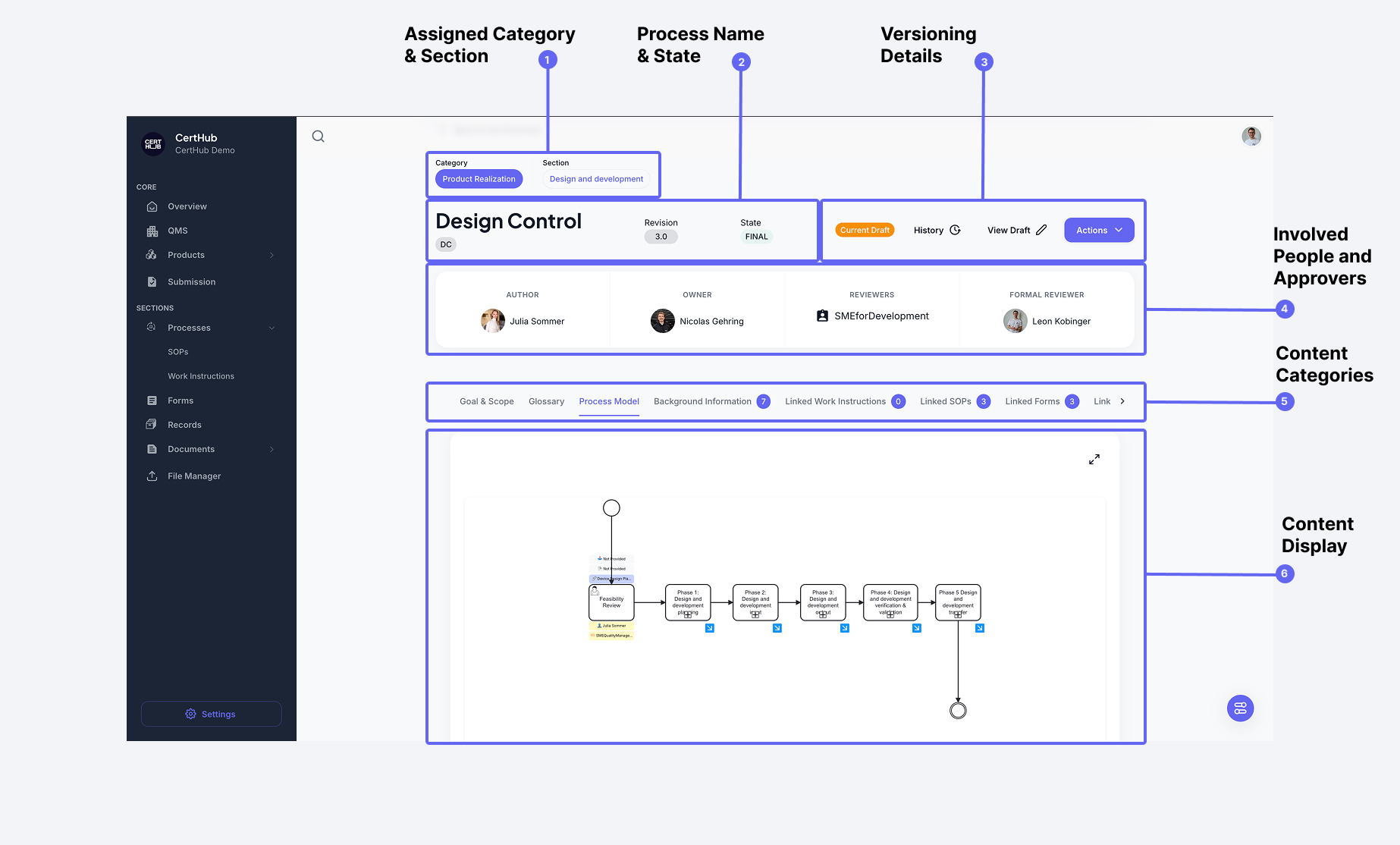 The process interface is divided into several key areas that help you manage and understand your processes.
Key Elements
-
Category & Section
- This will determine where in the QMS Overview the Process will show up
-
Process Name & State
- includes Process title and abbreviation
- Current revision/version number
- Status (DRAFT/FINAL)
-
Version Details
- Indication if there is an active Draft
- Version History of the Process
- Perform version-related actions
-
Approval Information
- Author: Creates and maintains the process
- Owner: Responsible for process content
- Reviewers: Team members who review changes
-
Content Categories
- Goal & Scope with short description of Process: Process purpose and boundaries
- Process Model: Visual BPMN workflow -> where you will find the main Process flow
- Background Information: Additional context, like Guidelines, Regulatory Information, MDR/IVDR references etc.
- Linked Items: Any connected Objects, such as Forms, Tempaltes, Product Data etc.
Creating and Editing Processes
Creating a New Process
As shown in the QM Module overview, you can create a new process by:
- Clicking the "+" button in the process list
- Selecting the category and section
- Providing basic process information
Editing a Process
Only draft versions can be edited. To make changes:
- Access Draft Mode
- Click "Current Draft" if one exists
- Or create a new draft using the "Create Draft" button
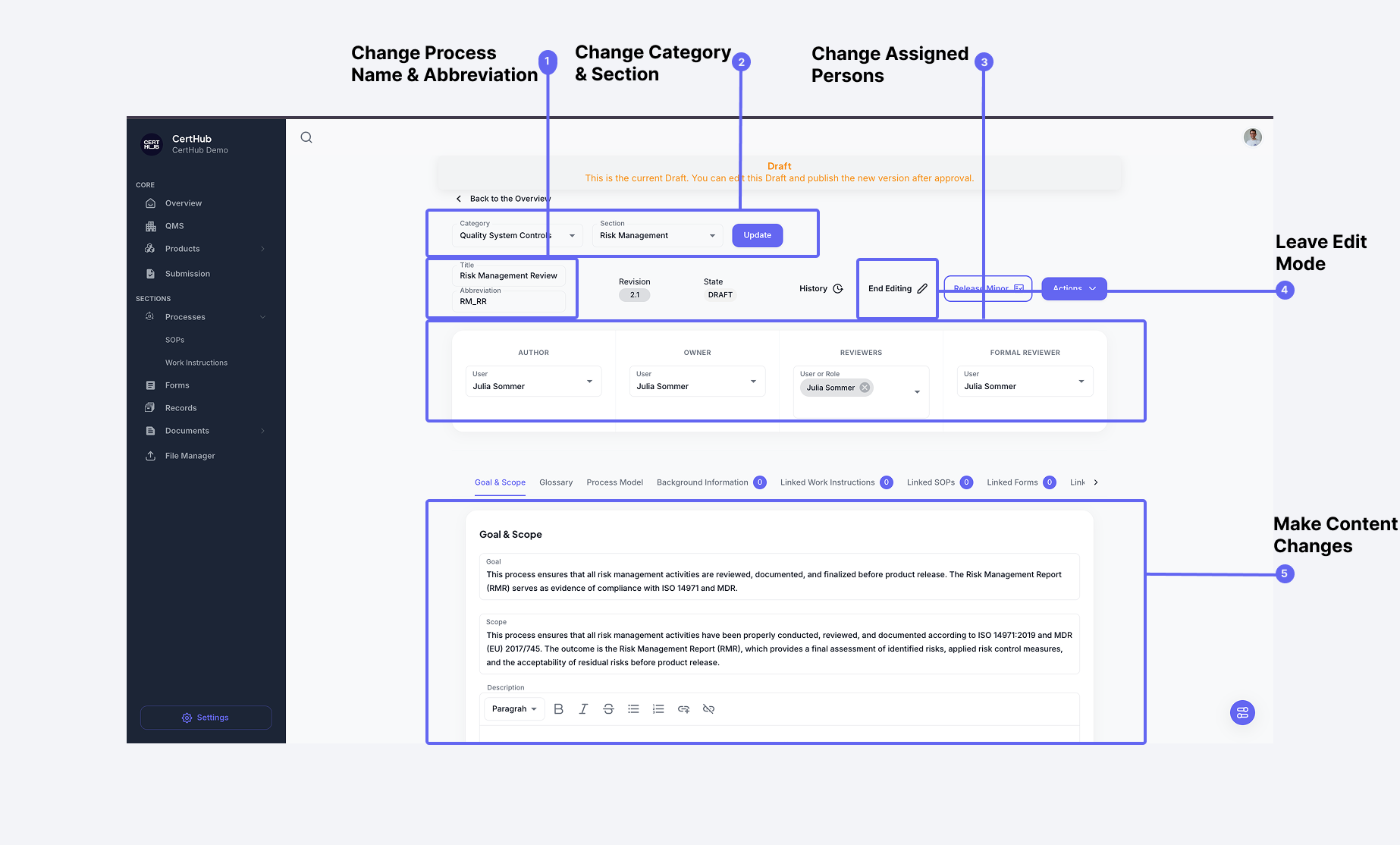
Then you will se the following draft interface:

-
Enter Edit Mode
- Click the "Edit" button in the top right
- The interface will switch to editing mode
- All editable fields become active
-
Make Your Changes
- Update process information
- Modify the process flow
- Add or remove linked items
- Change stakeholders if needed
-
Save and Release
- Your changes are saved during the editing process
- When you are satisfied you can do a minor release
- If you want to make the changes new new approved version select the "Approve Major Release" action which is behind the "Actions" button in the top right
Editing the Process Flow
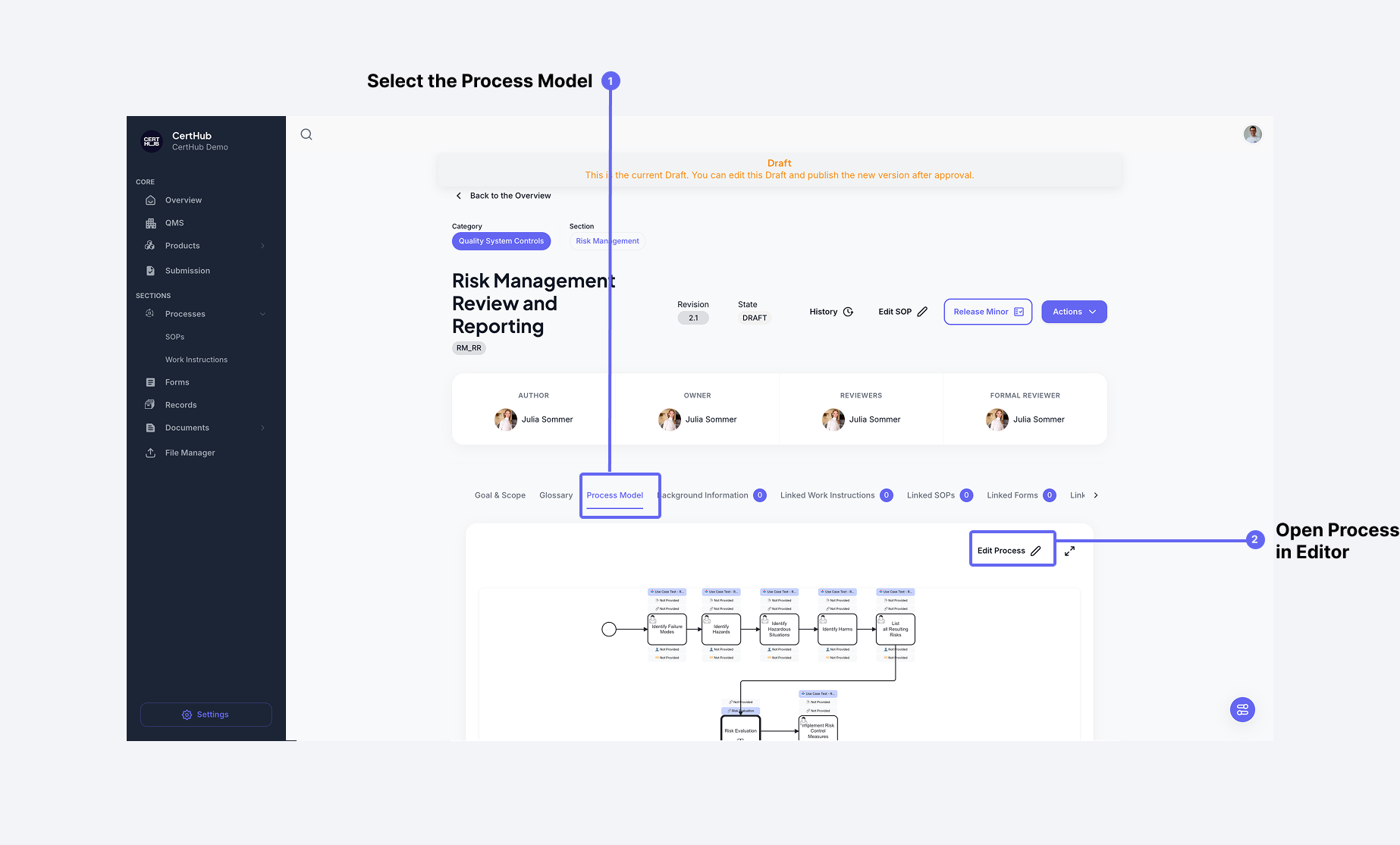
The heart of each process is its visual workflow diagram. To edit the process flow be sure you are in a Draft and in Edit Mode:
- Select the "Process Model" tab in the content categories
- Click "Edit Process" to enter the editing mode
- This will open the process in the BPMN Process Editor
For detailed instructions on creating and editing process flows, including available elements, configuration options, and best practices, see the BPMN Process Editor documentation.
Version Management
CertHub maintains a clear version history for all processes:
Draft Mode
- Make changes without affecting the live version
- Multiple people can collaborate on drafts
- Changes only become visible after release
Release Options
- Minor Release: For small changes (1.0 → 1.1)
- Major Release: For significant updates (1.1 → 2.0) (requires approval -> Action > Approve Major Release)
For detailed information about versioning and approval workflows, see Approval and Versioning. .