Application Settings & User Management
This section covers the administrative functions of CertHub, including user management and organization settings. These features are primarily accessible to users with administrative privileges and are essential for maintaining your organization's CertHub environment.
Accessing Settings
There are two convenient ways to access the settings in CertHub:
-
Via User Menu: Click on your profile picture in the top-right corner of the application. This will open a dropdown menu where you can access:
- Profile: View and manage your personal profile
- User Settings: Adjust your individual user preferences
-
Via Navigation Bar: In the left sidebar navigation, scroll to the bottom where you'll find the Settings icon. This provides access to general system settings and documentation.
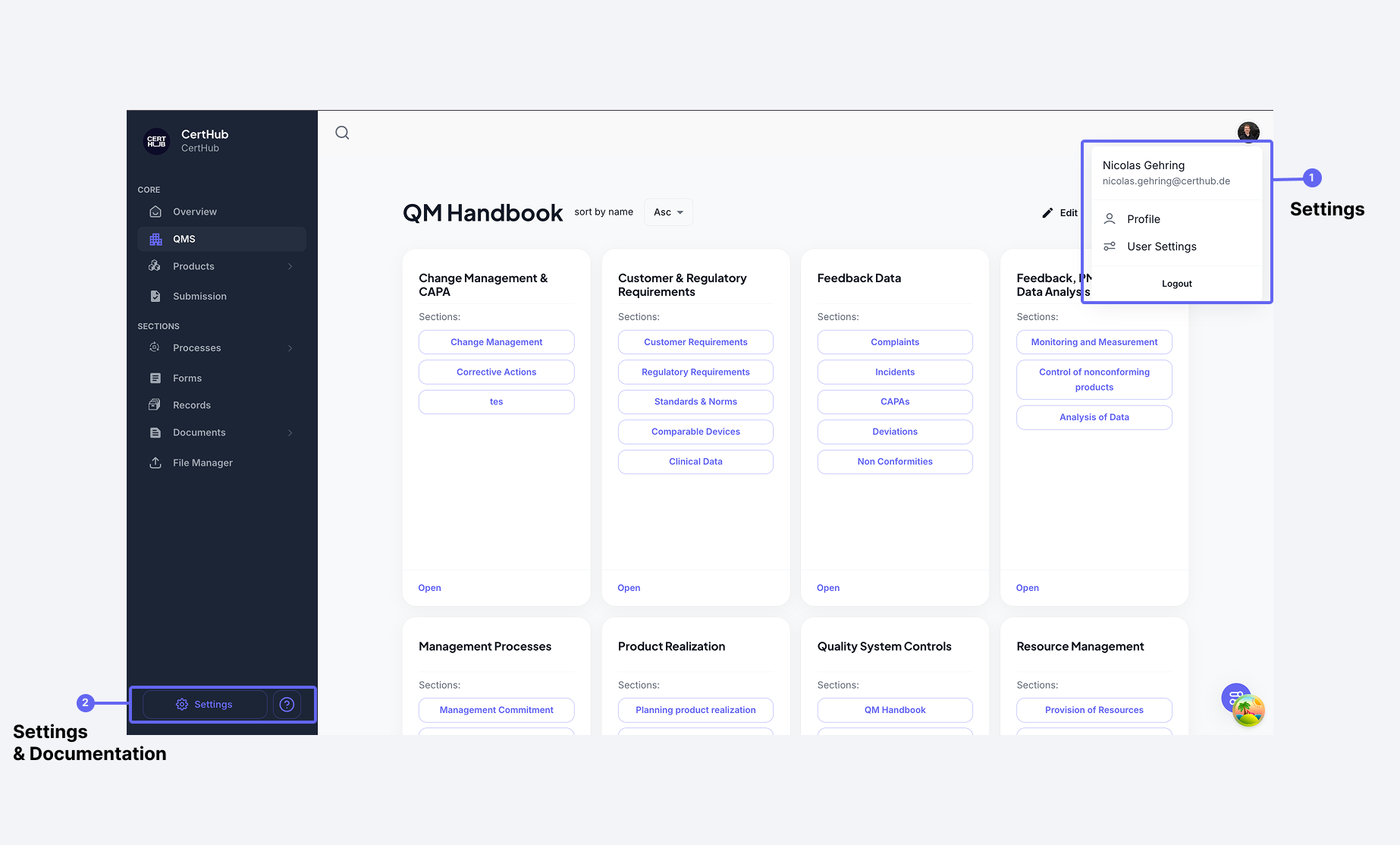 Figure 2: Settings icon located at the bottom of the left navigation bar
User Management
Administrators have comprehensive control over user management within the organization:
-
Managing Existing Users:
- View all users in a table format showing:
- Name
- Role
- Creation Date
- Select users using checkboxes for bulk actions
- Delete selected users using the "Delete" button
- Search functionality available to quickly find specific users
- View all users in a table format showing:
-
User Roles: Roles determine what each user is allowed to do. Every role grants a configurable set of six permissions — Read, Edit/Update, Download, Approve, Create new, and Delete — and a user's effective permissions are the combination of all the roles they hold.
CertHub provides a set of predefined roles covering common medical device quality management functions, including Admin, ExecutiveManagement, ManagementRepresantative(QMB), PRRC-ReportingObligations, RiskManager, and a range of subject matter expert roles. You can adapt these and create your own.
Roles are managed under Settings → Roles. For full details, see:
- Permissions Overview — how the permission model works
- Managing Roles and Permissions — creating roles and assigning users
- Role Reference — every predefined role and its permissions
API Keys
Under Settings → API Keys, each user can generate a personal API key for programmatic access to CertHub. The key authenticates as the user who created it and inherits that user's permissions. See Authentication and Permissions for details.
Organization Settings
Administrators can manage organization-wide settings to customize the CertHub environment:
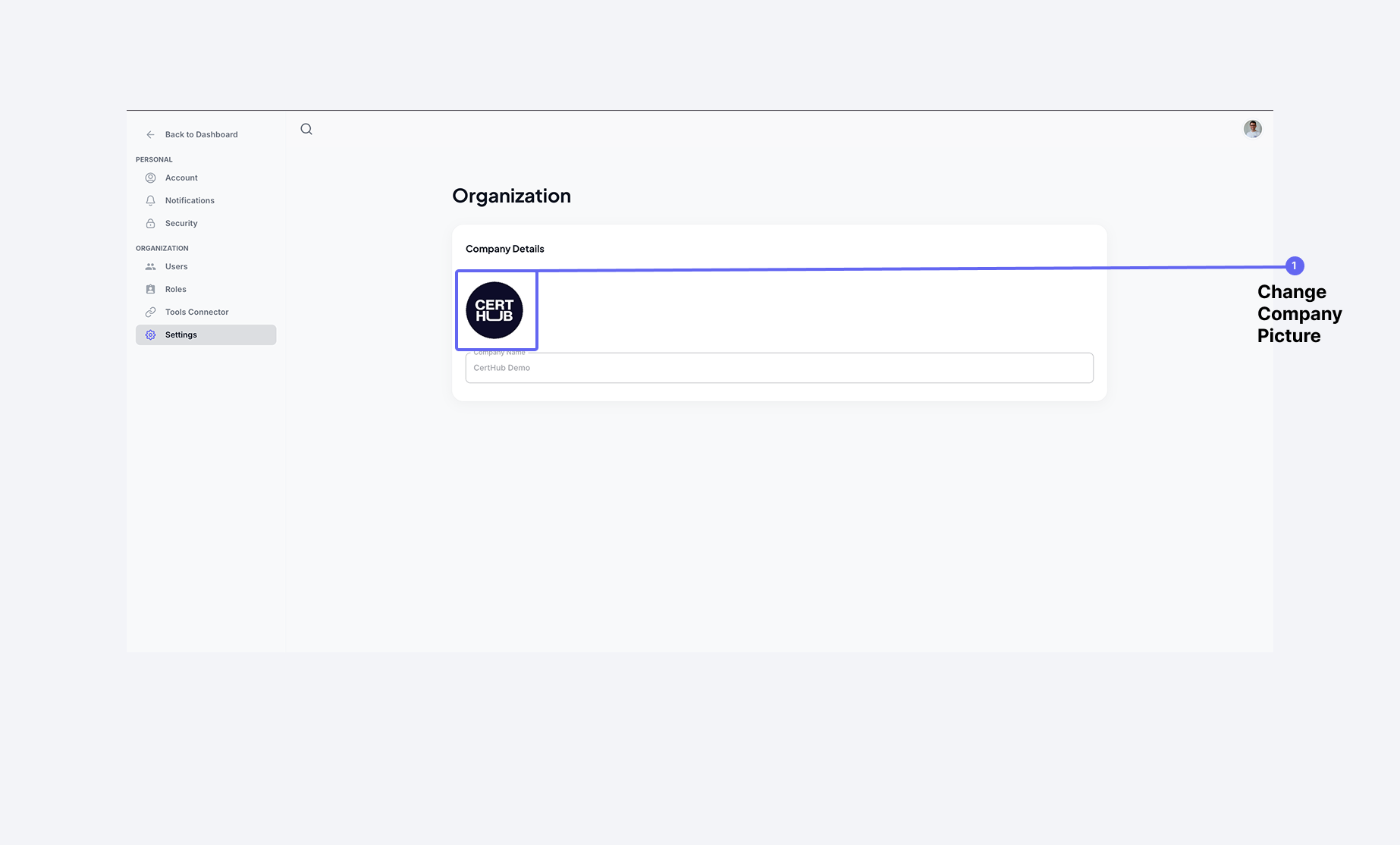 Figure 5: Organization settings page showing company details and branding options
- Company Information:
- Manage company branding
- Change company picture/logo by clicking on the image area
Only users with appropriate administrative permissions can access and modify these settings. All changes to organization settings are logged for audit purposes. In future updates, additional customization options will be available, including PDF export templates and document headers.